Appearance
🔗 Original page — Source of this material
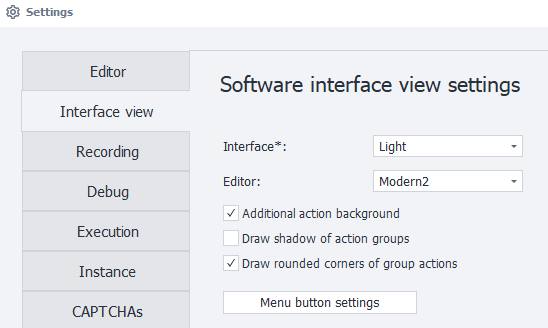
Interface
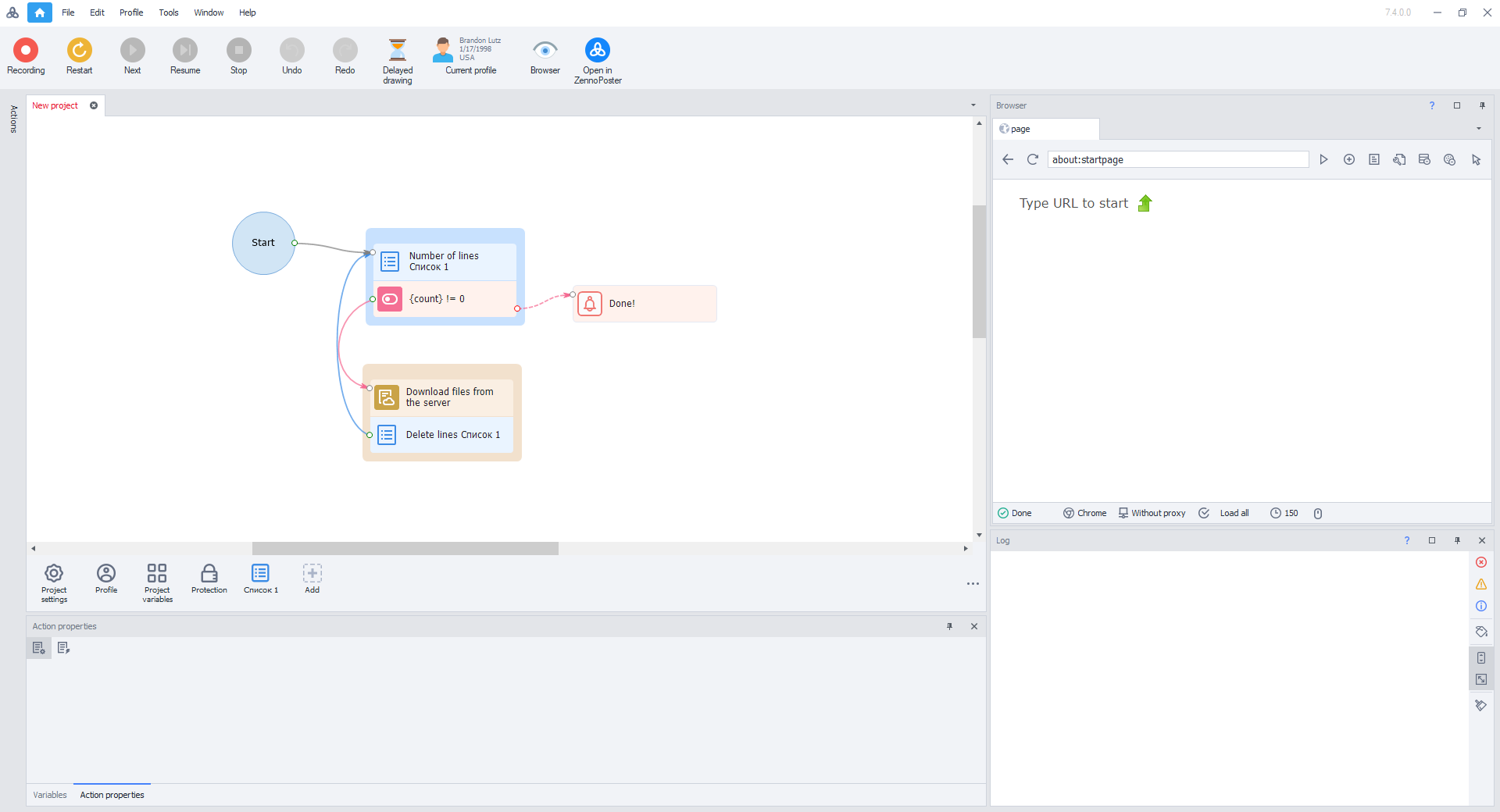
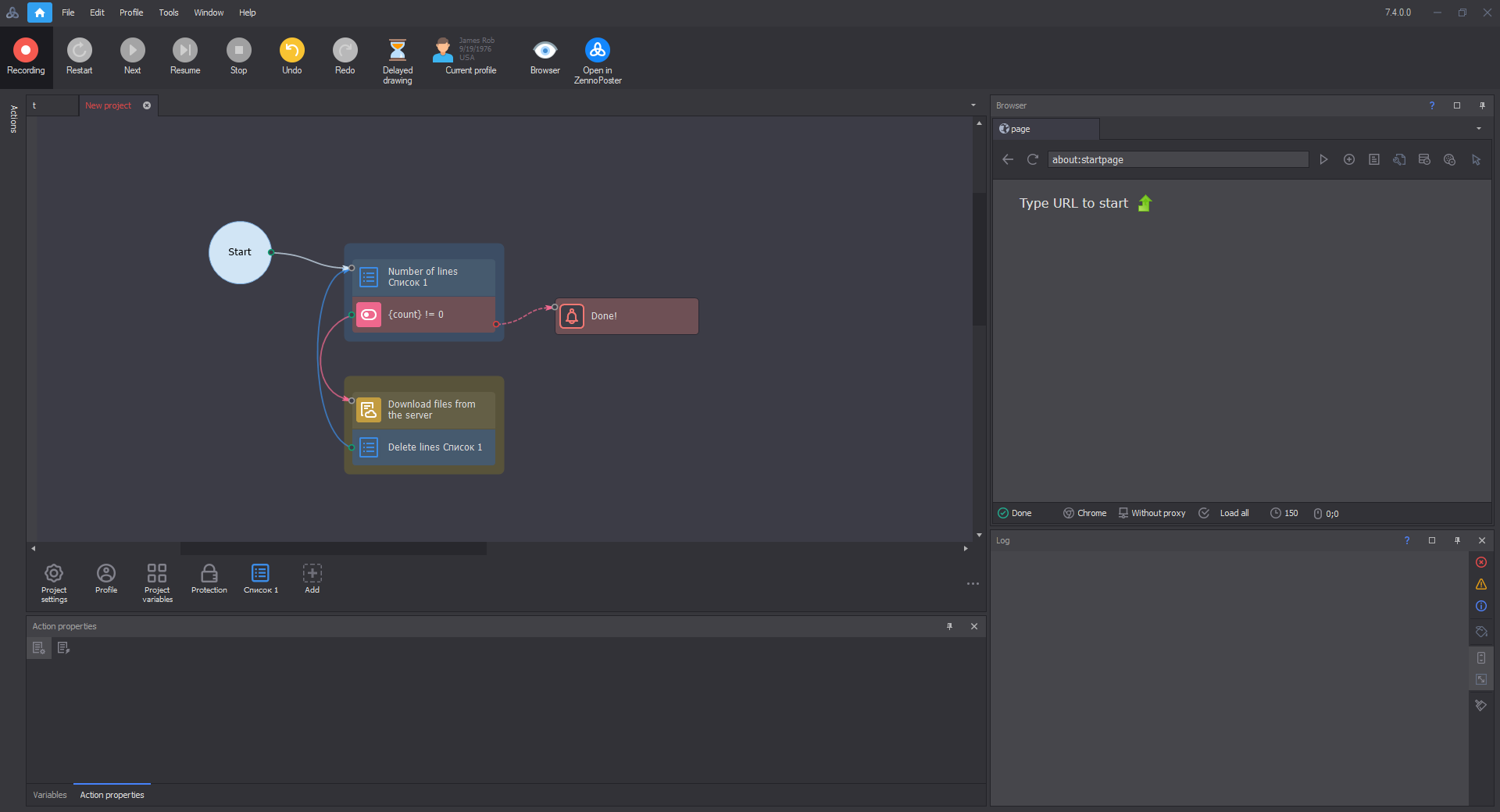
Choose between a light or dark theme for the program interface. This setting changes the appearance of windows, menus, and other ProjectMaker elements.
Light:
Dark:
Editor
Choose an editor theme. The appearance of actions will change depending on the selected theme.
This setting does not affect project execution.
Modern1
The modern appearance selected by default
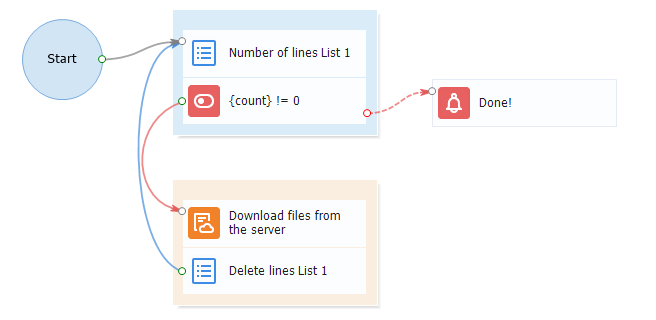
Modern2
The backgrounds of some icons change; everything else stays the same
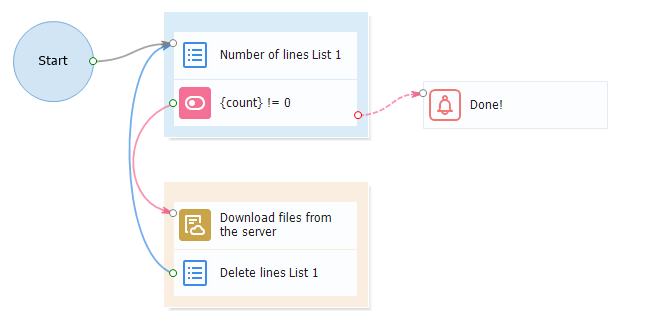
Letter
Icons are replaced with letters and symbols
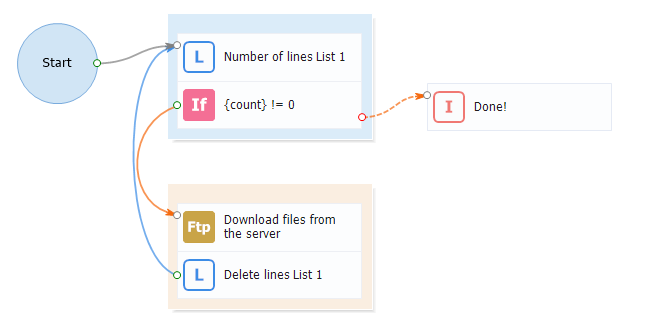
Classic
The program's earlier appearance, with a completely different set of icons
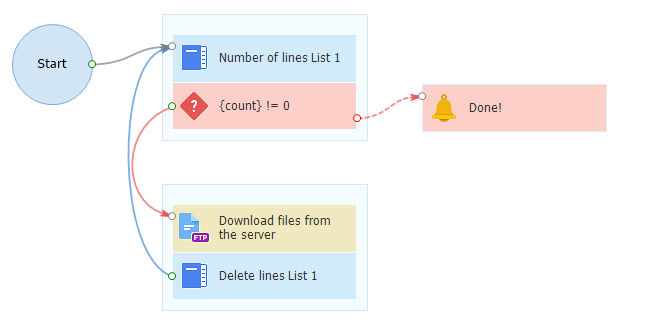
Classic2
Action backgrounds become more saturated
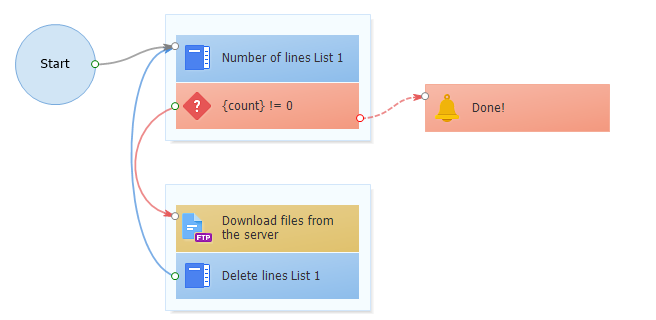
Additional Action Background
| With additional background | Without additional background |
|---|---|
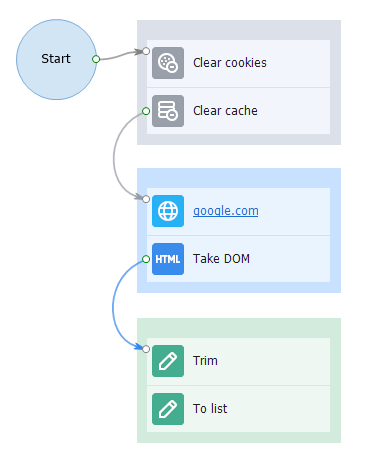 | 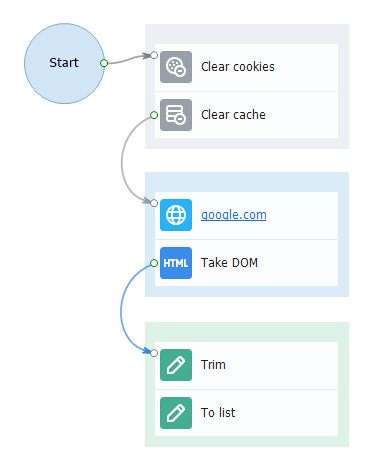 |
Draw Shadow for Action Groups
Adds a shadow around action groups to visually separate them from other project elements.
| Setting enabled | Setting disabled |
|---|---|
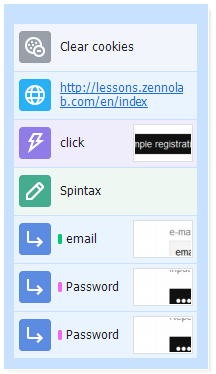 | 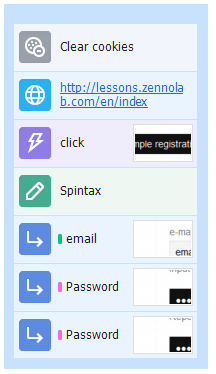 |
Draw Rounded Corners for Actions and Groups
When you enable this setting, actions and action groups are displayed with rounded corners.
| Setting enabled | Setting disabled |
|---|---|
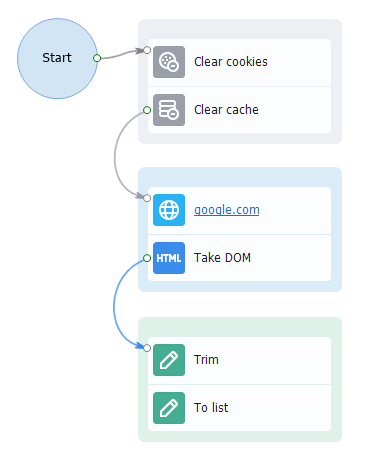 | 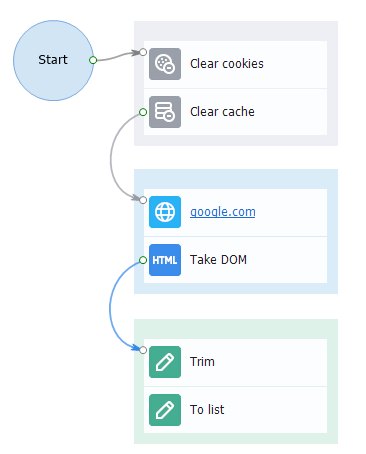 |
Menu Button Settings
Click this button to open an additional menu where you can choose which tool and section buttons appear at the top of the program. This lets you keep only frequently used features visible.
Tool Button Settings
Select which tool buttons to display in the top menu.
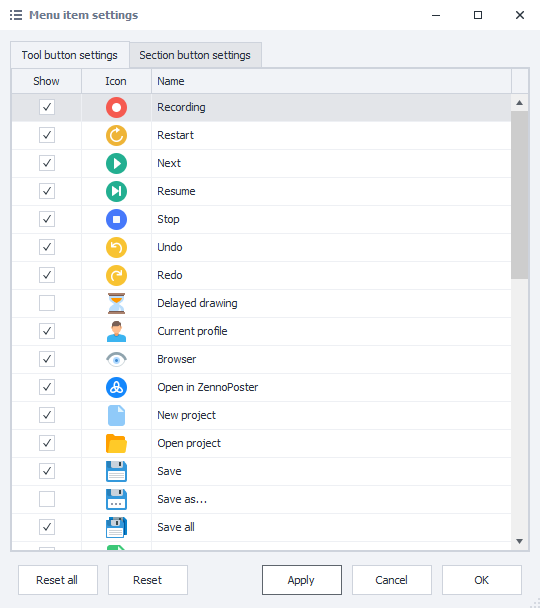
Once you select the desired buttons and click Apply, they immediately appear on the toolbar:

Section Button Settings
Select which sections to display at the very top of the program.
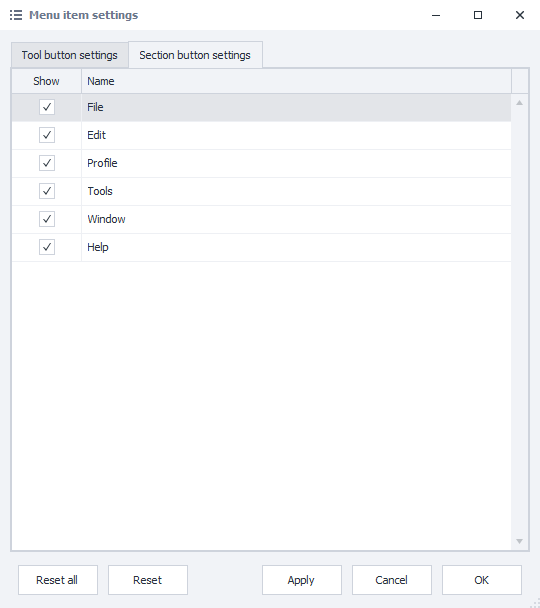
Once you select the necessary sections, they appear in the main menu:

Button Arrangement
You can manually arrange buttons and sections in the order that suits you. To do this, hold down the left mouse button on the desired item and drag it to the position you want.
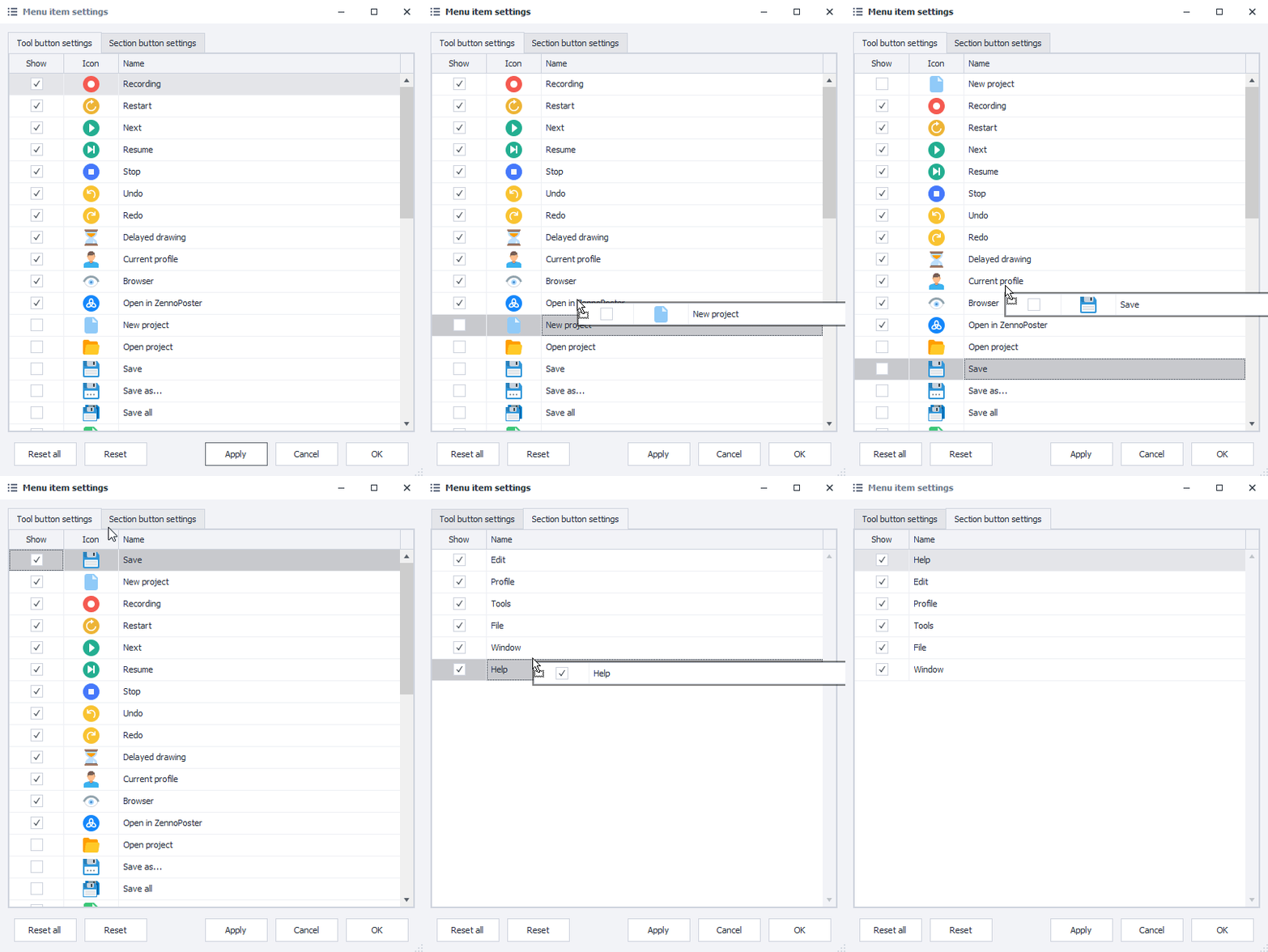
With Reset, you can return the items in the current settings window to their default positions.
Reset All returns the buttons in both windows to their default arrangements.