FTP Connection
🔗 Original page — Source of this material
How to create it?
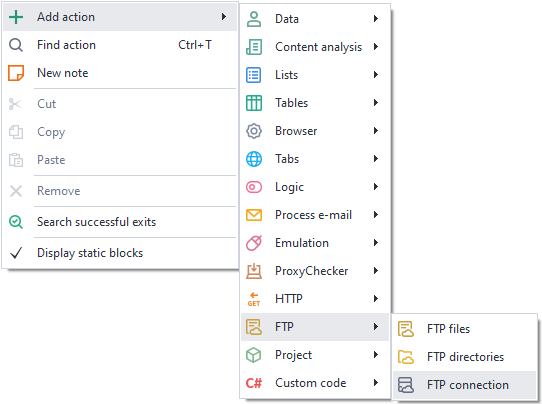
You can create a new FTP connection from the context menu:
Add action → FTP → FTP connection
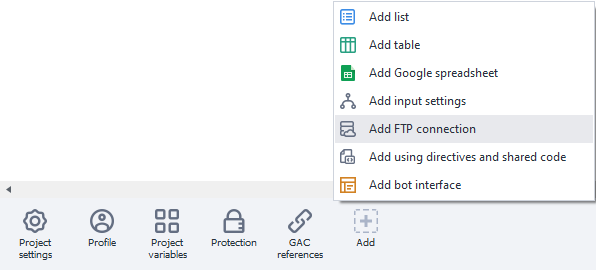
or through the Static blocks panel:
How to use it?
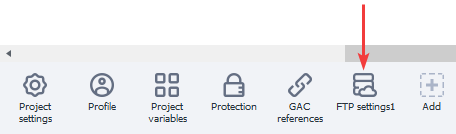
Available settings.
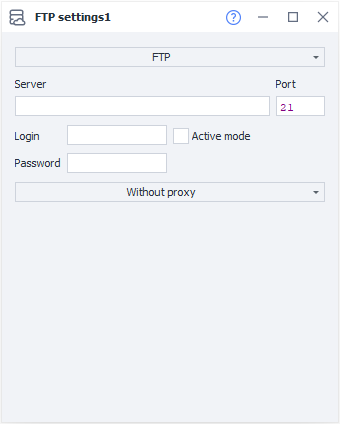
Select a transfer protocol type.
Click the topmost field to open a list of available protocols:
- FTP (File Transfer Protocol).
A standard protocol designed for transferring files. - FTPs (FTP + SSL).
A secure file transfer protocol. - sFTP (SSH(Secure Shell) + FTP).
A protocol for file operations over a reliable and secure connection.
Server (required).
Enter the FTP server name here.
Port (required).
Enter the port for the FTP connection. The default is 21.
Login and password.
Credentials for connecting. You can leave these blank if the server allows it.
Active mode.
Check this box if you need to use FTP active mode.
The server initiates the connection to transfer data.
This can cause problems if you have a Firewall or NAT enabled that blocks incoming connections.
Proxy.
You can leave the setting as No proxy, or choose one of the following:
- Current project proxy;
- A string in the format protocol://login:pass@ip:port;
- Other.
In Other mode, you can enter a proxy in any format by filling in the required fields.
The address, port, and authentication details are provided by your service provider.