Image Search
🔗 Original page — Source of this material
Description
Allows you to click an element using visual search. We recommend using it when you cannot find the element by other means. It is also suitable for Flash and Canvas.
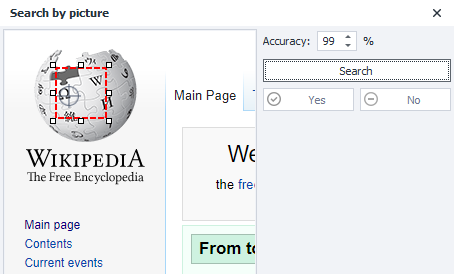
How to add to your project?
Hover your mouse over the element and right-click to open the context menu:
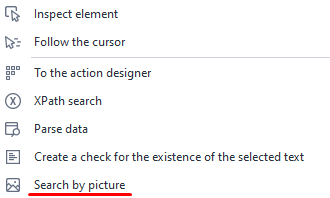
How it works
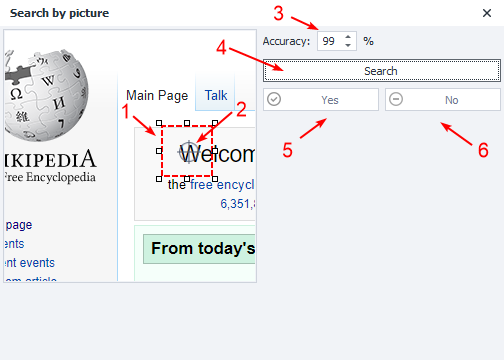
- Adjustable search area — select a unique part of the element that distinguishes it from the others.
- Click target — sets the click location inside the search area and can be moved.
- Match accuracy — specify, as a percentage, how closely the element must match the sample.
- Search — search in the browser window.
-
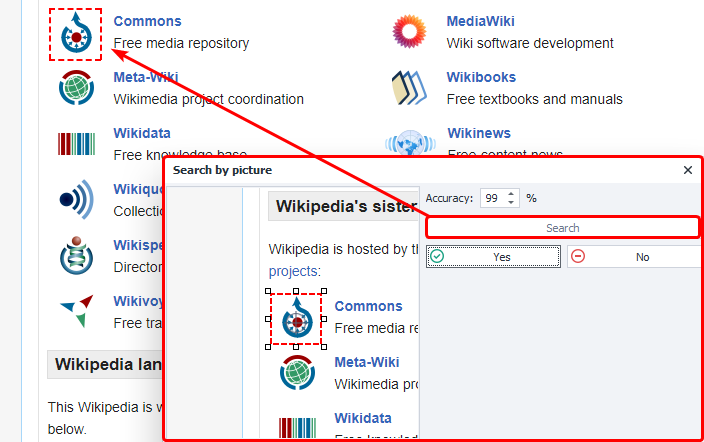
Yes — confirm that the element found meets your criteria.
-
No — reject the result to change the search parameters.
Click settings
These apply to the successfully found element.
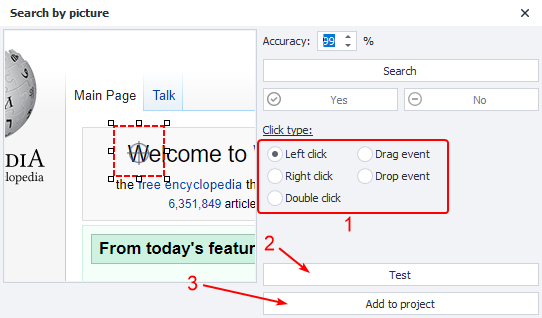
- Choose the Click type:
- Left click — a regular left mouse button click;
- Right click — a right mouse button click on the element;
- Double click — a double left mouse button click;
- Drag event — an event that occurs while the object is being dragged;
- Drop event — an event that occurs when the object is released in a valid area.
- Test the click in the browser window.
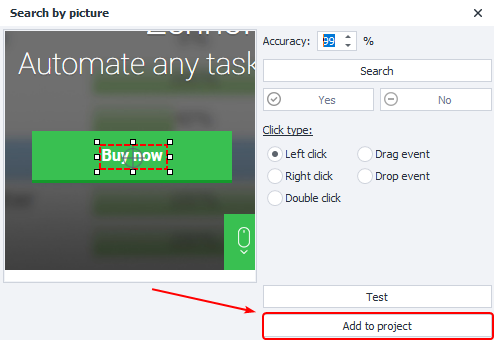
- Add the configured action to your project.
Example usage
Search example
Suppose you need to find a particular button to click on a page:
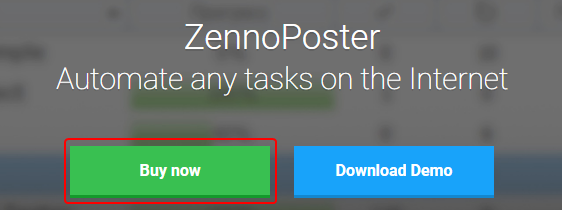
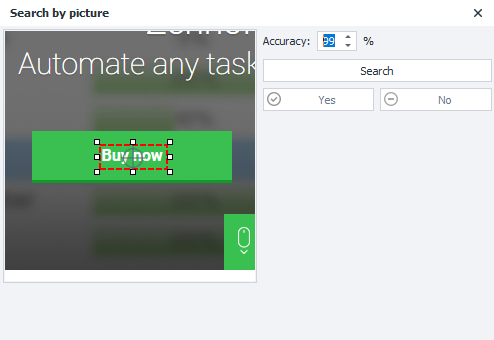
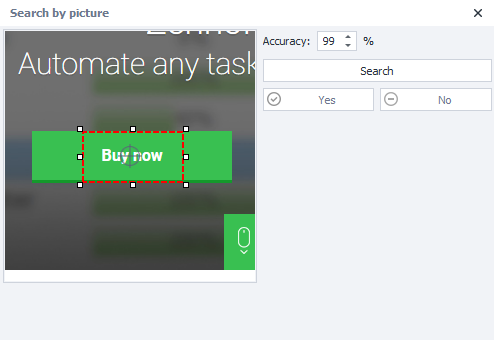
Open image search in the browser window and specify a unique area:
| Unique area | Contains a lot of uniform color |
|---|---|
 |  |
Now choose the click type (Left click in this example) and test it in the browser window:
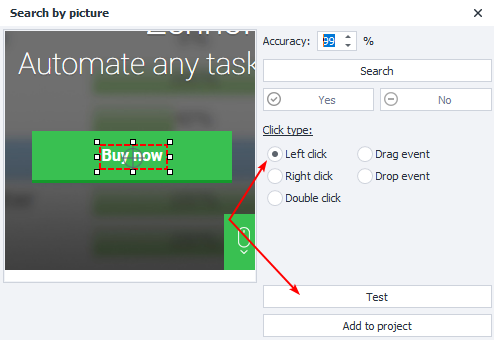
The click succeeded, so add the action to the project canvas:
Project example
This feature can be useful in Flash games or applications where you cannot access individual elements. The workflow is as follows:

- Go to the page and wait for it to fully load.
- Hover your mouse over the element, open the context menu, and select Image Search.
- Specify a unique search area and the click parameters.
- Test in the browser window.
- Add the action to your project.