Parse Data
🔗 Original page — Source of this material
Description
ZennoPoster offers various tools for finding and collecting information from web pages. Data Parsing is one of them. It lets you select the elements you need on the current page and configure data collection in just a few clicks, without writing code.
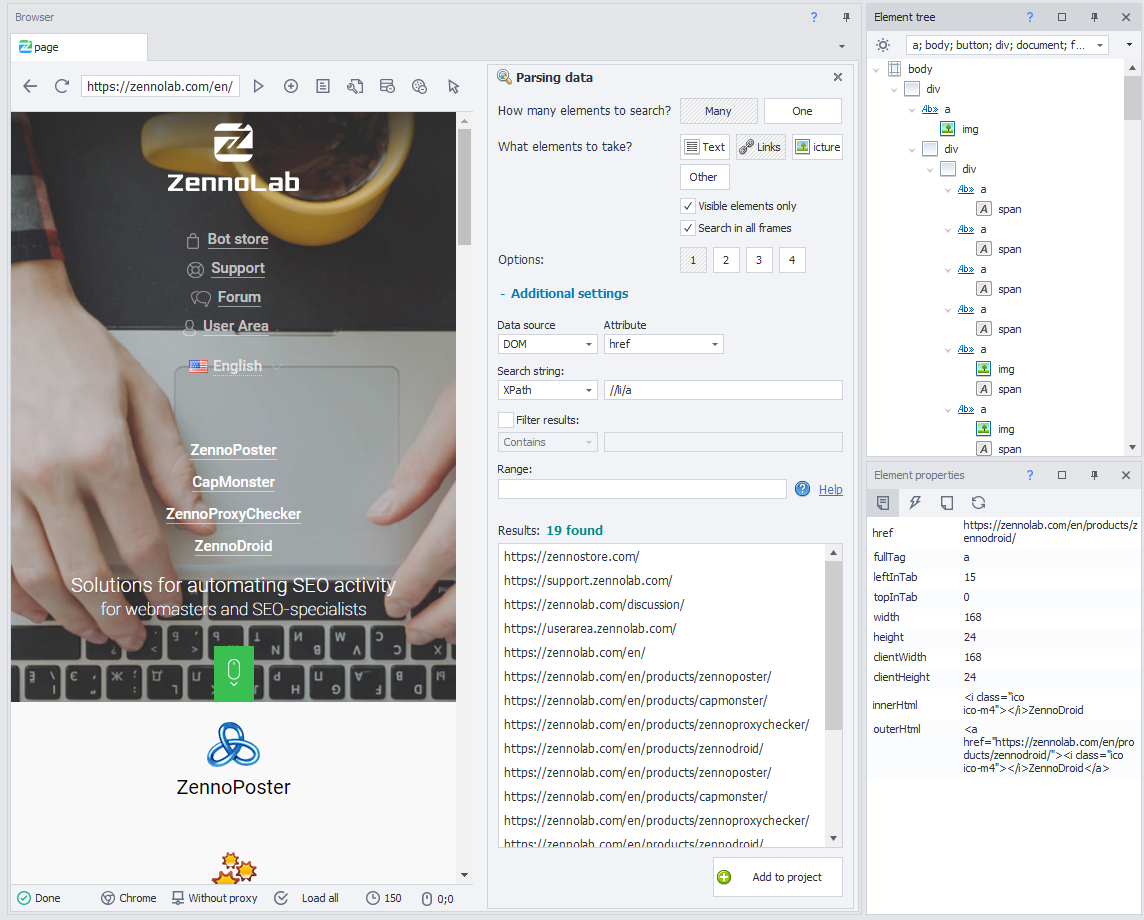
How to open this window?
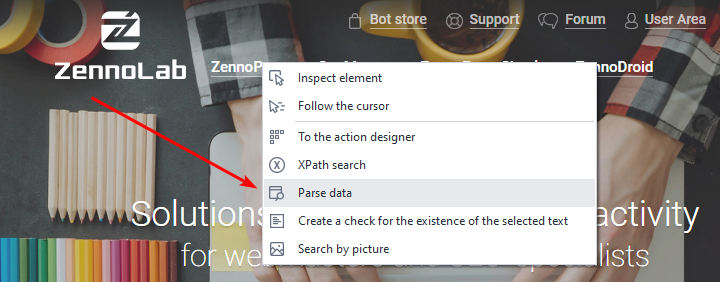
Select Parse Data from the Browser Window context menu:
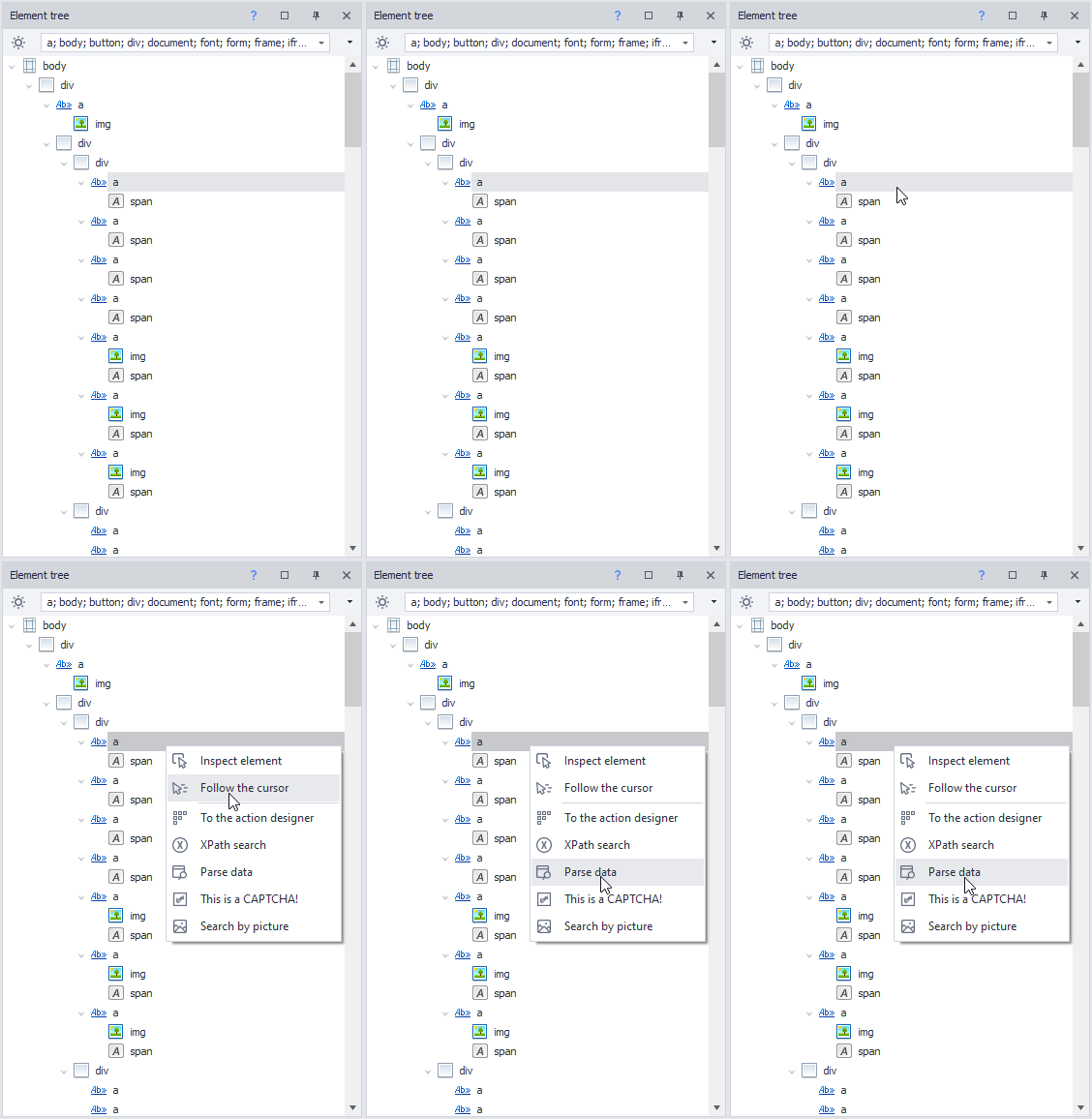
Or select Parse Data from the Element Tree context menu:
How it works
The Data Parsing window is divided logically into Quick Search and a more detailed search with Additional settings:
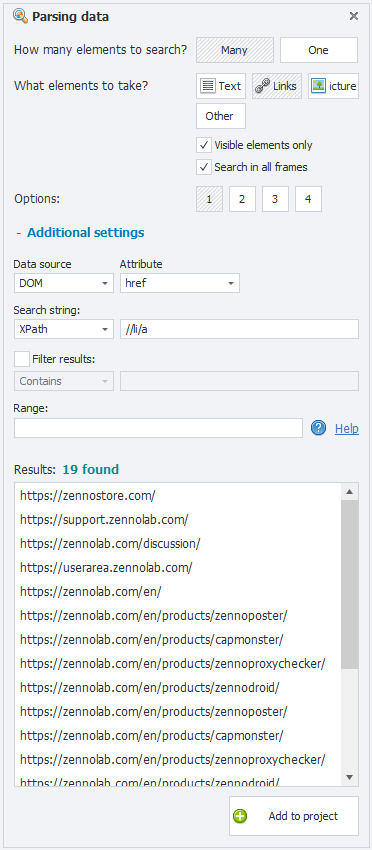
How many are we looking for?
You can find Many elements matching the specified conditions or select just One.
What to grab?
Choose which data to retrieve from the elements found:
- Text — the element's visible text.
- Links — the addresses the links found point to.
- Images — image paths. For example: https://zennolab.com/wp-content/themes/zenno/img/logo.png.
- Other — lets you select or specify the HTML element data you need.
- Only visible elements — include only elements currently displayed on the page.
- Search in all frames — search for data in embedded frames as well as in the main document.
- Variants — automatically generated search condition variants: [1], [2], [3], and so on. Choose the one that finds the required data most accurately.
An independent HTML document loaded within a page.
Additional settings
These provide a more flexible search, letting you specify more precisely where and what data to find.
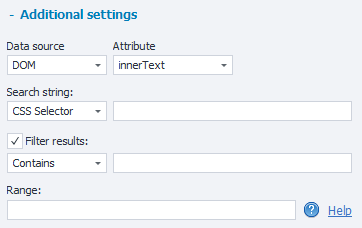
- Data source — the page code to search: DOM or the original HTML.
- Attribute — the HTML element attribute whose value you want to retrieve.
- Search string — the query ZennoPoster uses to find the required elements. You can use XPath or a CSS selector.
- Filter results — keep only values that match the selected condition:
- contains;
- does not contain;
- regex — filtering using a regular expression.
- Range — a condition that selects only part of the array of elements found.
Results
This window shows a preview of the search results. Check that ZennoPoster found exactly the data you need.
Add to Project
Once all conditions are configured, check the data found in the preview window and click Add to project.
A Parse Data action will appear in the workspace. In its settings, you must specify where to save the retrieved data.
Example usage
Suppose you need to collect the addresses of all images on the active web page.
This example uses the official ZennoLab website.
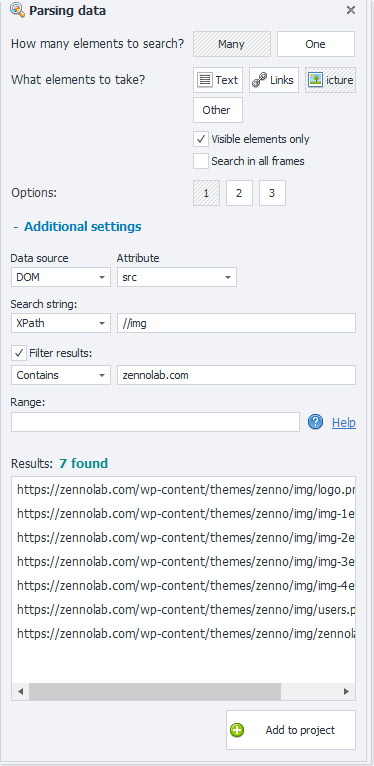
- Open the required page.
- Open Data Parsing.
- Under How many are we looking for?, select Many.
- Under What to grab?, select Images.
- Check the addresses found in the preview window.
Done: ZennoPoster has collected the image addresses from the current page. You can now add the result to the project and save it to the required variable or list.