Device Settings
How do I add an action to a project?
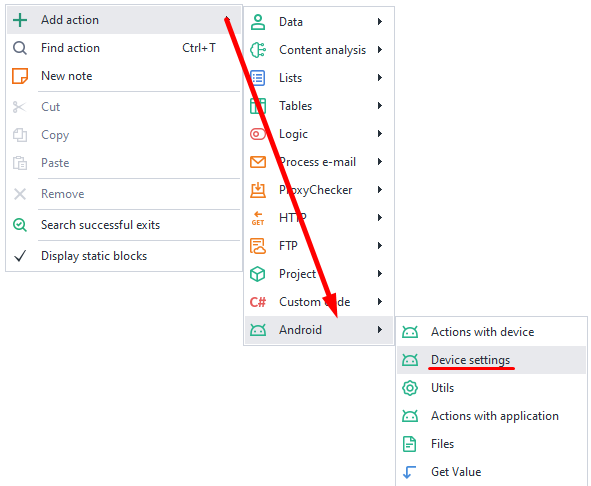
Right-click on an empty spot to open the context menu.
Then choose Add Action → Android → Device Settings.
How do I set up device identifiers?
With this feature, you can change things like IMEI, Android ID (device ID), IMSI, and Sim Serial (SIM card serial number).

How do I add a mobile operator?
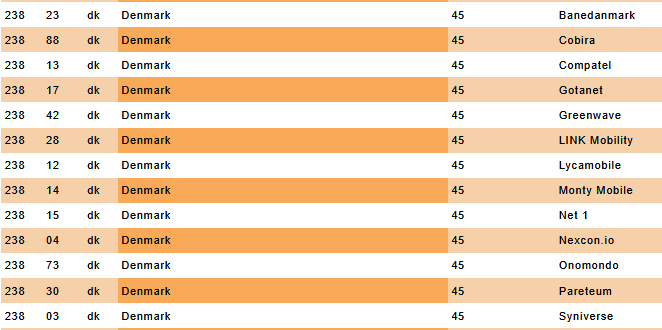
You can find all the info you need for this action on this site
Available settings:

- Country: The two-letter ISO code from the table.
- Operator Code: Combine MCC and MNC columns (for example, 25002 for Megafon).
- Operator Name: The Network column (Baykal Westcom, BeeLine/VimpelCom, MTS).
- Phone Number: Start without the "+" sign, just 79*** and so on.
How do I specify the device model?
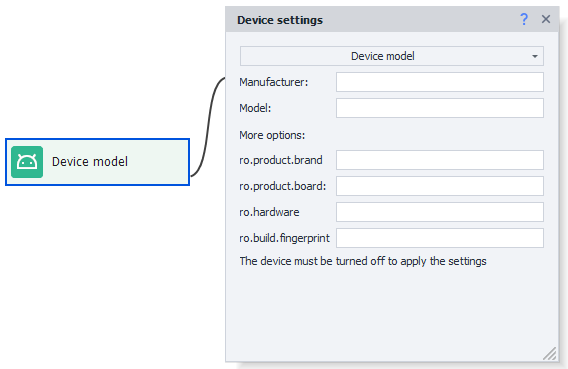
Available settings:
- Manufacturer: The brand you want to emulate (Samsung, Huawei, Xiaomi, Google, Meizu, etc).
- Model: The model to use. You can find it in build.prop (see below for tips).
- ro.product.brand: If this field is empty, just copy in the Manufacturer.
- ro.product.board: For newer phones, this isn't important; you can leave it blank.
- ro.hardware and ro.build.fingerprint: Get these from build.prop.
Where to find data in build.prop:
Search in Google like this:
build.prop phone_model (for example, build.prop Samsung s10).
Click on any result and look through the post to find the info you want:
ro.product.brand=samsung
ro.hardware.chipname=exynos9820
ro.product.board = none
ro.product.model or ro.product.system.model
You'll need to run the getprop command in the terminal (for example, Terminal Emulator for Android).
How do I set the Wi-Fi MAC address?

Format – use colons: XX:XX:XX:XX:XX:XX, or without them: XXXXXXXXXXXX (12 characters)
Performance settings:
Here you can set how much of your computer's resources will be allocated to the device.

Available settings:
- Processors: Number of CPU cores dedicated to the emulator.
- RAM (MB): Amount of RAM in megabytes you can allocate to the emulator. Minimum is 512MB, maximum is 65,636MB.
Important! More than 4GB can only be given to Android x64. On x86, 4GB is the limit.
On MuMu you can set 1 to 32 cores, and the memory is rounded to the nearest MuMu value, from 0.75 to 16 GB.
Since your PC's resources are being used for the emulation, if you set the numbers too high, things might start to lag. We recommend starting with the minimum and increasing as needed.
Set screen resolution:
In this setting, you can set the Width and Height of the screen as well as the pixel density (DPI).
DPI — you can choose any value between 40 and 640, but it's better to stick to Memu's standard ranges.

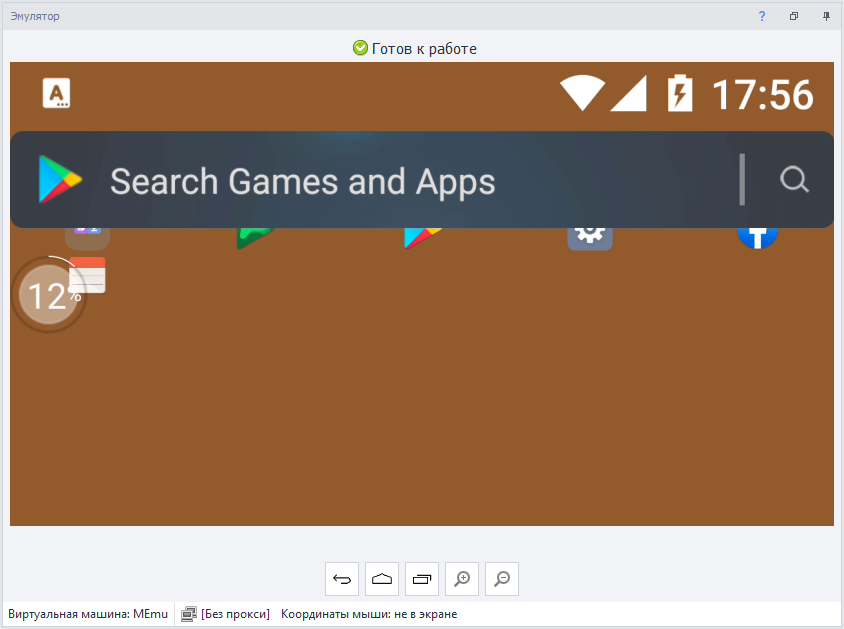
Changing DPI can mess up how some app elements are displayed. Things may become too large, covering other elements, or too small.
For example:
| 1280х720, density - 640 | 1280х720, density - 240 |
|---|---|
 |  |
Rendering mode selection:
Switching between OpenGL and DirectX. This setting mostly matters when you're running games in the emulator. The best setting depends on trial and error or what others say online. Some games work better with OpenGL, others with DirectX. Your graphics card and its drivers also affect performance.

Root user mode:
Lets you turn root access on or off for your device.

Shared folders access:
You can set up paths to shared folders in Windows here. This makes it easy to move files into and out of the emulator.
Documents\MuMuSharedFolder: on the device these are the Download, Pictures, Music, Movies and Screenshots folders.
Examples:
- In Memu: /sdcard/Download, in Windows: C:\Users\USERNAME\Downloads\MeEmu Download
- In Memu: /sdcard/Movies, in Windows: C:\Users\USERNAME\Videos\Memu Video
- In Memu: /sdcard/Music, in Windows: C:\Users\USERNAME\Music\Memu Music
- In Memu: /sdcard/Pictures, in Windows: C:\Users\USERNAME\Pictures\Memu Photo
USERNAME — use the Windows account name you're logged in as.
GPU settings
Substitutes the graphics adapter data that apps and sites receive.
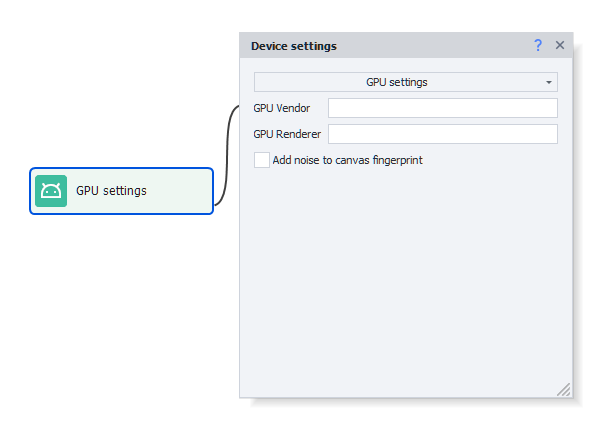
- GPU Vendor. Vendor of the graphics adapter.
- GPU Renderer. Model of the graphics adapter.
- Add noise to canvas fingerprint. Makes the device's canvas fingerprint unique.
In code the same values are set with AddGpu and AddCanvasNoise.
System language selection:
This setting changes the emulator's language.
Available values: en, ko, de, ja, fr, ru, es, pt, hr, cn, sr, it, cs, th, in, pl, tr, uk, ar, vi, fil

You can also change the language in the device window: the Device → Change system language... item shows the languages in the emulator's firmware and can add this action to the project.
On MuMu the language changes only on a running device.
Set time zone:
Lets you choose the device's time zone.
Use this format: Europe/Moscow or America/New_York etc.

You can see the complete list of time zones here
If the device has no such time zone, the action ends with the error Unknown time zone ..., and the device's time zone doesn't change.
How do I set the date and time?
You can set whatever you want: year, month, day, hour, minute, and second.

If you leave all fields empty, it will sync automatically to the current time.
The device clock shows exactly the time you set, in the time zone set on the device.
Camera type:
Available options:
- Physical: Your real webcam plugged into your PC.
- Virtual: Used automatically if you don't have a physical one. It's built into the emulator and lets you scan QR codes from your screen.

How to select system disk connection type:
Available options:
- Shared disk: Lets you use the same system disk for all emulators, which saves space. In this mode,
it's read-only, so you can't write to it. - Independent disk: With this setting, you can write info to the emulator's system section (/system).

How to set up a proxy:
This setting lets you set a proxy for the whole emulator.

Proxy format:
- With authentication:
protocol://login:password@ip:port - Without authentication:
protocol://ip:portFor protocol use: http, socks4, or socks5. If not set, http is used by default.
It's better to turn the proxy on before you start the emulator, or some apps might send data over your real IP before the proxy kicks in.
Proxifier
A powerful and flexible program for rerouting internet traffic through a proxy server.
The emulator will be proxied by its PID in Windows.
Redsocks
Redsocks2 is used for proxying all TCP/UDP traffic transparently.
By default, DNS queries will go through the proxy server. So if your queries are blocked (can't get online or get DNS_PROBE_FINISHED_NO_INTERNET), you need to turn off DNS redirect.
var settings = new DroidProxySettings.Redsocks();
settings.UseDnsTcp = false;
settings.UseDnsUdp = false;
instance.DroidInstance.Proxy.SetProxy("socks5://10.20.30.40:8080", settings);
Run this code before you set up the proxy.
DNS addresses
With Redsocks, you can set DNS server addresses. If there are several, separate with a comma ,.
All DNS queries will go through the proxy.
instance.DroidInstance.Proxy.SetDnsServers("8.8.8.8,8.8.4.4");
Run this code before you set up the proxy.
Clash
This is an advanced proxy client that lets you route traffic with rules.

DNS addresses
Here too you can set DNS server addresses. If there are several, separate them with a comma ,, a semicolon ;, a space or a line break.
Clash queries servers with a tcp://, tls:// or https:// prefix, for example tls://1.1.1.1, through the proxy. Servers without a prefix or with udp:// are queried directly.
Local IP
Set the device's local IP address.
If you make the last digit of the address zero (for example, 192.168.20.0), a random address will be generated from the specified subnet (192.168.20.2-192.168.20.254).
Local IPv6
Right here, you can set the device's local IPv6 address.
Example: fdfe:dcba:9806::1/126. If you use something like fdfe:dcba:0::1/126, the 0 will be swapped for a random hex value.
Whitelist
A list of apps whose traffic will go through the proxy (separated by a comma, a semicolon, a space or a line break). All other apps will use a direct connection (no proxy).
You can find the app's package name using Installed Apps.
Blacklist
Conversely, use this to specify which apps won't use the proxy. Their traffic will go direct, while all others use the proxy.
You can find the app's package name using Installed Apps.
If you fill in both, only the whitelist will be used.