Instance Settings
🔗 Original page — Source of this material
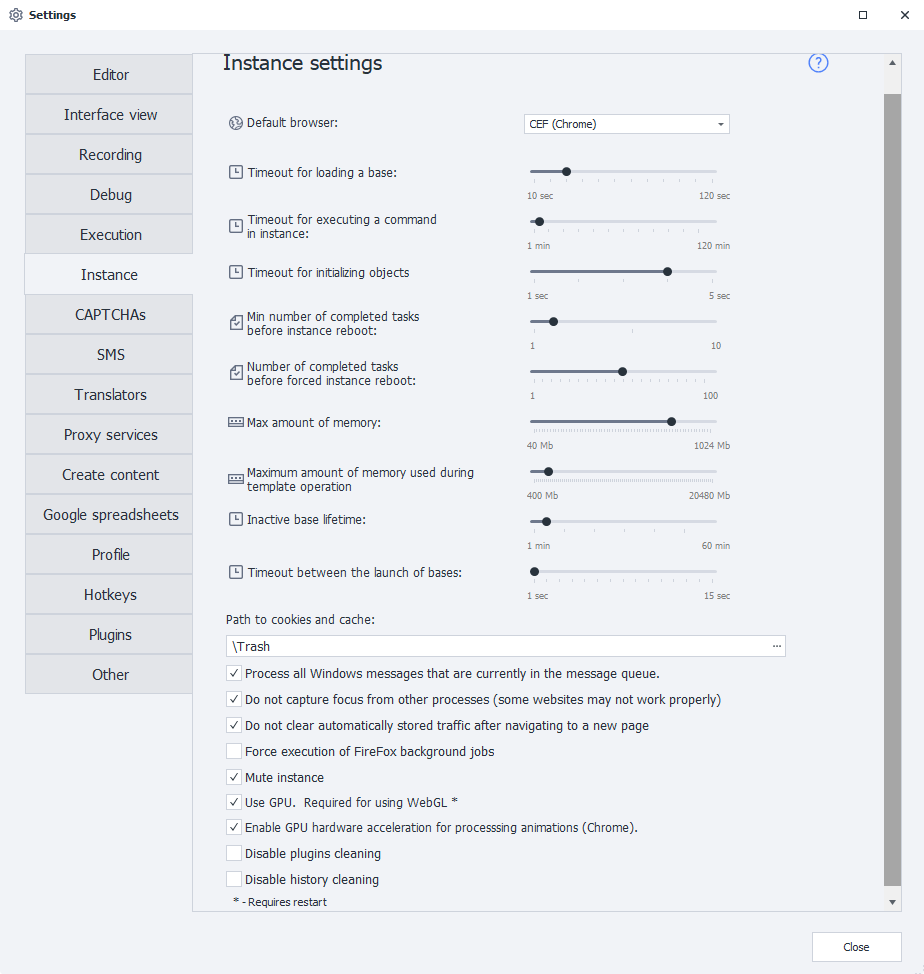
Default browser
Specifies which browser will launch by default.
You can select a different browser for an individual template:
- in Project Settings;
- using the Launch instance action.
Instance pool loading timeout
Sets the time allowed to launch a new thread within an already running process.
Instance command execution timeout
Sets the maximum time to wait for a command to execute in an instance, including any action.
Object initialization wait timeout
Sets additional time for loading a web page and its elements. This may be needed, for example, to display a CAPTCHA or dynamic content.
If the page doesn't load in time and the log displays the message “HTML element not found”, try increasing this value.
Minimum number of tasks before reload
Sets the minimum number of tasks that must be completed before the instance pool is reloaded.
Completed tasks before forced reload
Sets the number of completed tasks after which the instance pool will be forcibly reloaded, regardless of their results.
You can manually restart an instance using the Reload instance action in the template.
Maximum memory usage
Sets the maximum amount of memory one instance can use. If this value is exceeded, the instance pool will be marked for a forced reload.
Maximum memory usage while a template is running
Limits the amount of RAM available to a single thread.
If a thread exceeds this limit, its execution will be forcibly stopped. The following message will appear in the log:
Проект остановлен из-за превышения лимита занимаемой памяти
Inactive instance pool lifetime
Sets how long an inactive instance pool continues running before it is shut down.
Timeout between instance pool launches
Sets the delay between instance pool launches. This helps avoid CPU spikes, especially on low-powered computers.
Cookie and cache path
Specifies the folder where temporary browser files are stored. We recommend using a folder inside the program directory.
Files downloaded through the ProjectMaker browser are saved in this folder as well.
By default, the Trash folder in the installed program directory is used. Its path may look like this:
C:\Program Files\ZennoLab\RU\ZennoPoster Pro V7\7.4.0.0\Progs\Trash\
Process all queued Windows messages
Allows the program to process all Windows events that occur while an instance is running.
Do not steal focus from other processes
Prevents ZennoPoster from stealing focus from other applications. This helps avoid screen flickering and unexpected switching of the active window.
Some sites, such as VK, require the browser to receive focus in order to work properly.
Do not automatically clear traffic on Navigate
Disables automatic clearing of the request log in the Traffic window each time you navigate to a new page.
You can control this setting for an individual project using C# code:
instance.ClearTrafficWhenNavigate = false; // Отключить очистку
instance.ClearTrafficWhenNavigate = true; // Включить очистку
Force Firefox background tasks to run
Forces Firefox background operations to continue running when an instance hangs.
unless you experience unexplained hangs while running projects.
Mute sound
Disables audio playback in the instance.
Use GPU
Uses the graphics card to speed up rendering in the instance.
Use GPU hardware acceleration for animation processing in Chrome
Enables animation rasterization using the GPU in Chrome.
if a supported graphics accelerator is unavailable.
Disable plugin cleanup
Prevents automatic cleanup of Firefox plugins.
Disable history cleanup
Prevents automatic cleanup of Firefox history.