ProxyChecker Settings
🔗 Original page — Source of this material
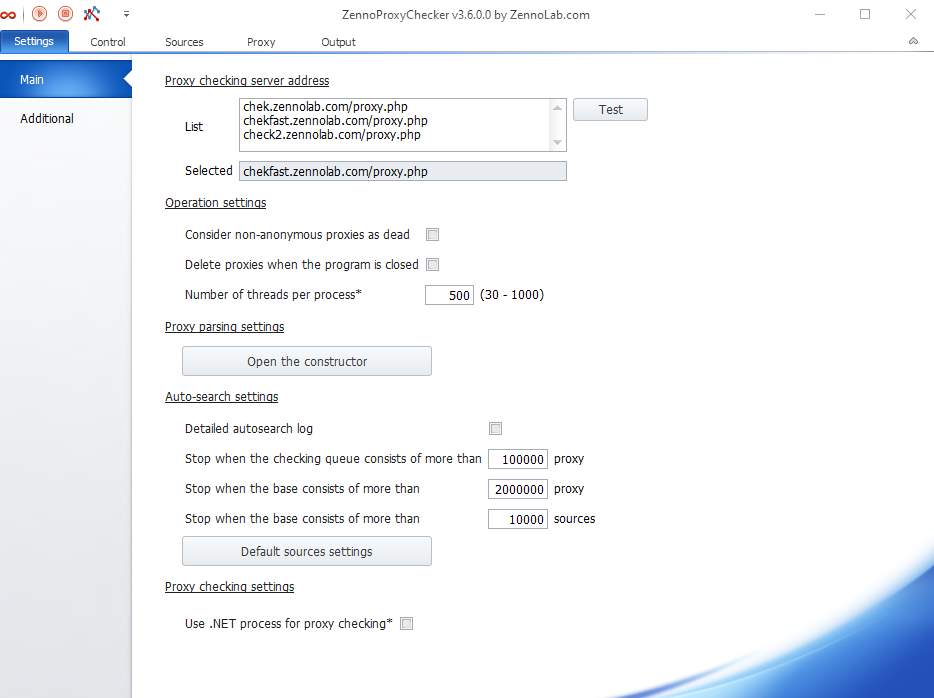
Proxy check server address
In this section, you can select the server the program will use to check whether proxies are working.
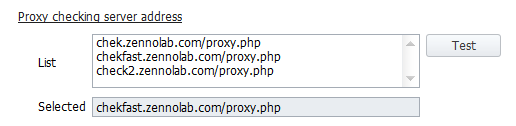
List
Contains the URLs of proxy check servers.
By default, the list contains three addresses. You can add your own if needed.
“Test” button
Checks the addresses in the list one by one.
The check ends:
- when the program finds the first working server;
- when all addresses have been checked, if none of them are working.
Selected
Displays the server address that will be used to check whether all proxies are working.
The first working address in the list is automatically entered in this field.
Behavior settings
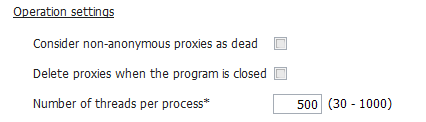
Treat non-anonymous proxies as dead
Excludes non-anonymous proxies from the results. The program will treat them as nonworking and use only anonymous proxies.
Delete proxies when closing the program
Clears the proxy list when the program closes.
Threads per process
Sets the number of threads used by each process to check proxies.
Proxy parsing settings
In this section, you can add new and edit existing proxy parsing structures. Each structure consists of a set of regular expressions.

To configure structures, click Open builder.
Proxy parsing structure builder
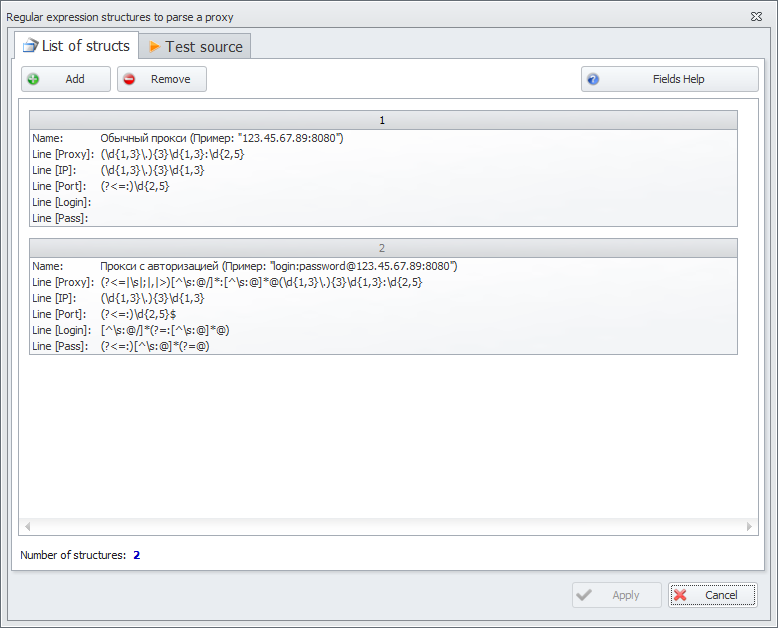
“Structure list” tab
By default, the list contains two structures with regular expressions.

On this tab, you can:
- create your own structure using the Add (1) button;
- delete an existing structure using the Delete (2) button;
- view descriptions of the available fields using the Structure fields help (3) button.
The proxy format may vary from site to site. If needed, you can create a structure for almost any format and then test it on a specific source.
“Test source” tab
On this tab, you can test the parsing structure you created.
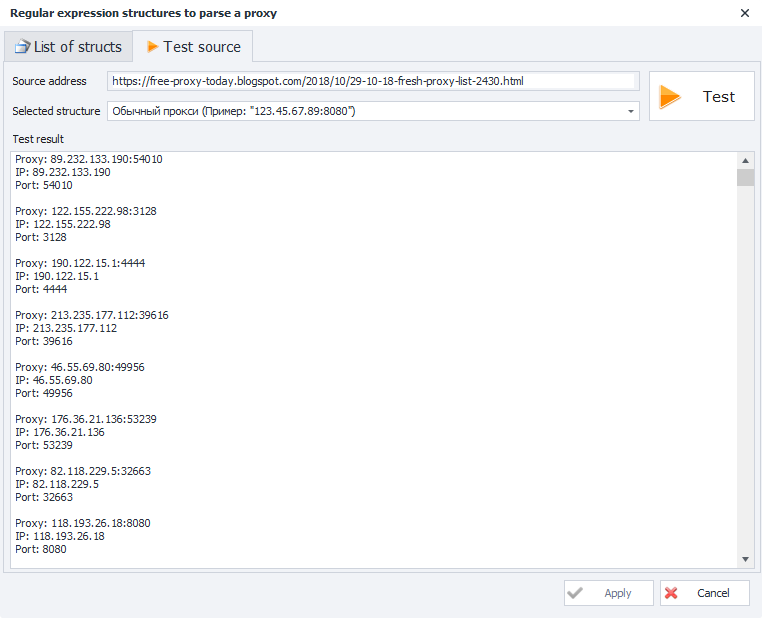
Source address — enter the address of the website the program should get proxies from.
Selected structure — select a parsing structure previously added on the Structure list tab.
After filling in the fields, click Test. Proxies found using the selected structure will appear in the Test results window.
When you close the builder or click Cancel
Automatic search settings
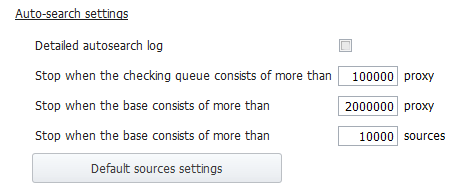
Detailed automatic search log
Enables detailed logging of ZennoProxyChecker when running in automatic search mode.
Stop if more than XXX proxies are queued for checking
Stops automatic search when the number of proxies queued for checking exceeds the specified value.
Stop if the database contains more than XXX proxies
Stops automatic search when the number of proxies in the database exceeds the specified value.
Stop if the database contains more than XXX sources
Stops automatic search when the number of sources in the database exceeds the specified value.
Default source settings
Sets the parameters that will be applied automatically to all new sources.
For more information about the available parameters, see Source settings.
Proxy check settings

Use .NET process to check proxies
Uses the CheckingProcessor implementation on the .NET platform to check proxies.