Translators
🔗 Original page — Source of this material
Description
Enter the details in this settings section to use automatic translation services in your projects.
They are needed for:
- translating articles;
- translating message text into the recipient's language;
- translating prepared text for autoresponder bots.
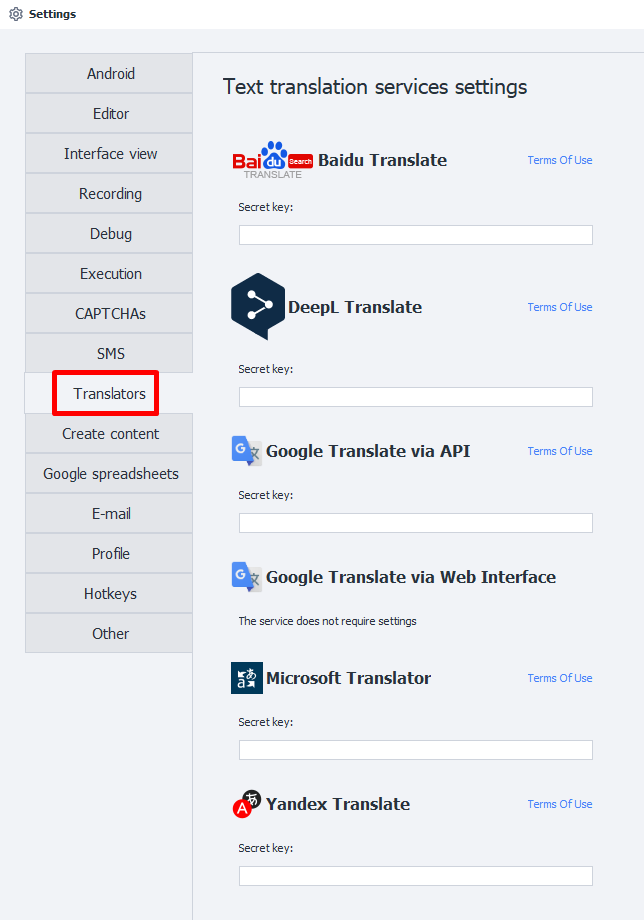
Baidu Translate.
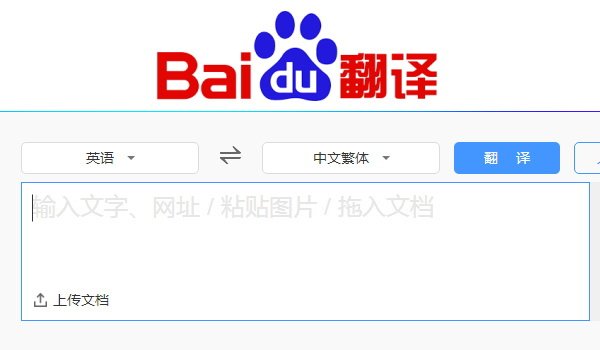
For convenience, we recommend using a browser with a built-in translator.
Getting a secret key.
1. Go to the service website.
2. Hover over the indicated character:
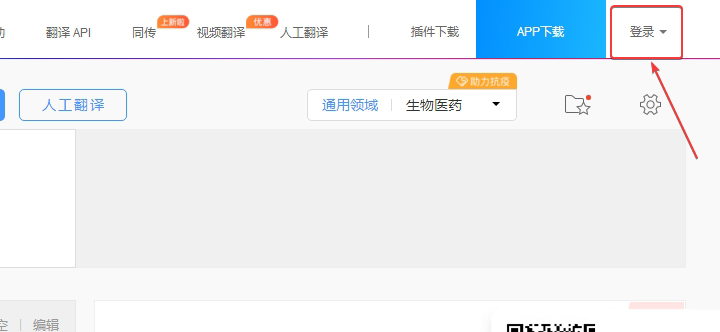
3. A pop-up window will appear for signing in:
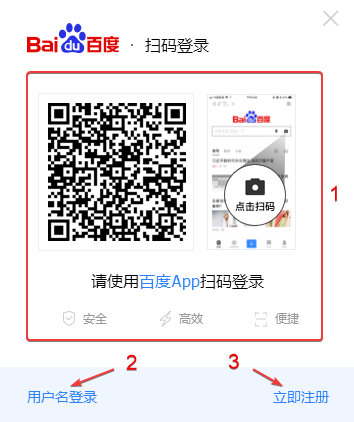
4. Sign in to the service.
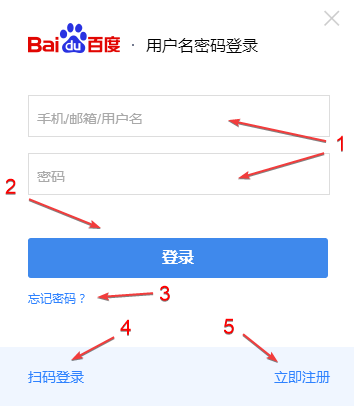
1. Enter your username and password here.
2. Sign-in button.
3. Password recovery.
4. Return to signing in through the app.
5. Create an account.
5. Create a new account.
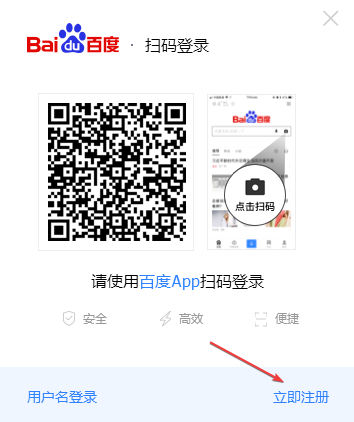
In the sign-in window, select Register:
A page will open where you can enter your details to create a new account:
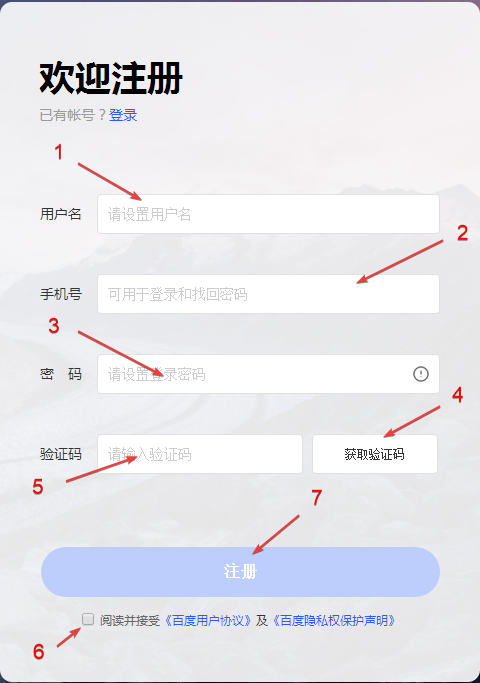
1. Username.
2. Phone number without the country code.
3. Password that meets the service requirements.
4. Button to send an authorization SMS.
5. Field for entering the code from the SMS.
6. Agree to the website's terms of use.
7. Register.
After registering, you can copy the key from your account and paste it into ZennoPoster Settings.
Deepl Translate.
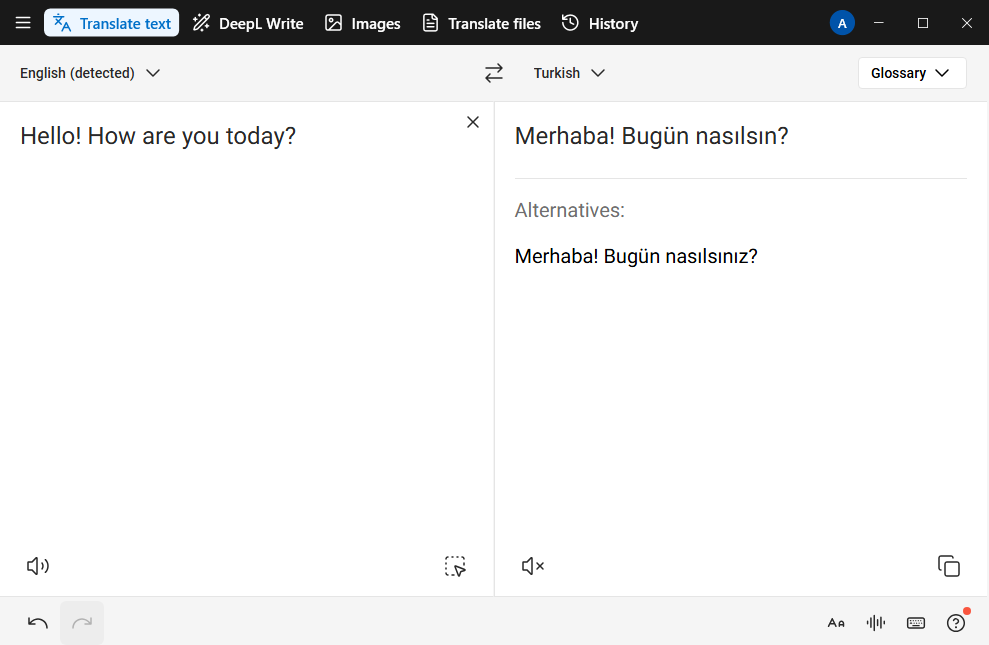
However, if you have a valid payment method from one of these countries: an EU country, Switzerland, the UK, the US, Canada, or Japan, you can access DeepL Pro by entering those details during checkout.
Getting a secret key.
1. Go to the service website and click the three-line button in the top-right corner.
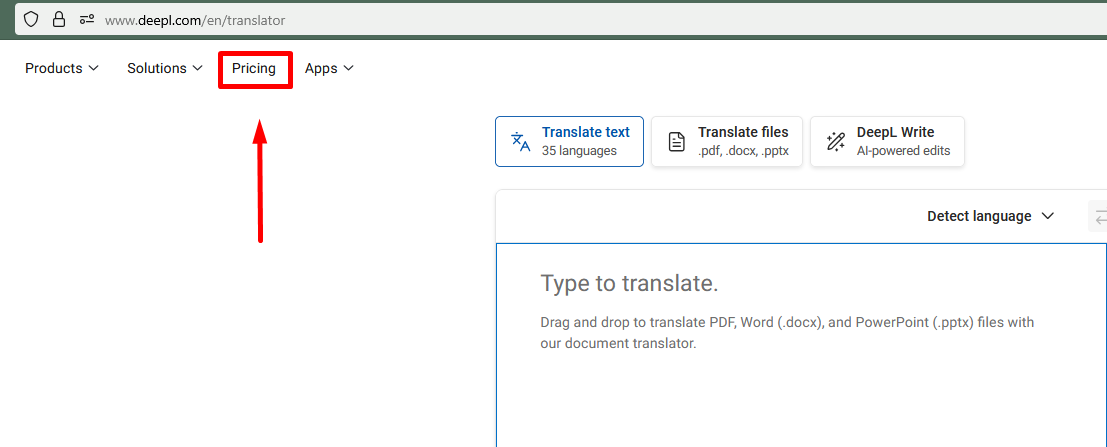
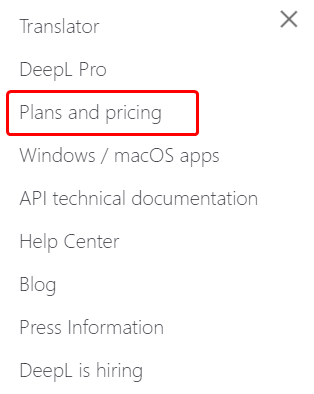
2. Click the Plans tab.
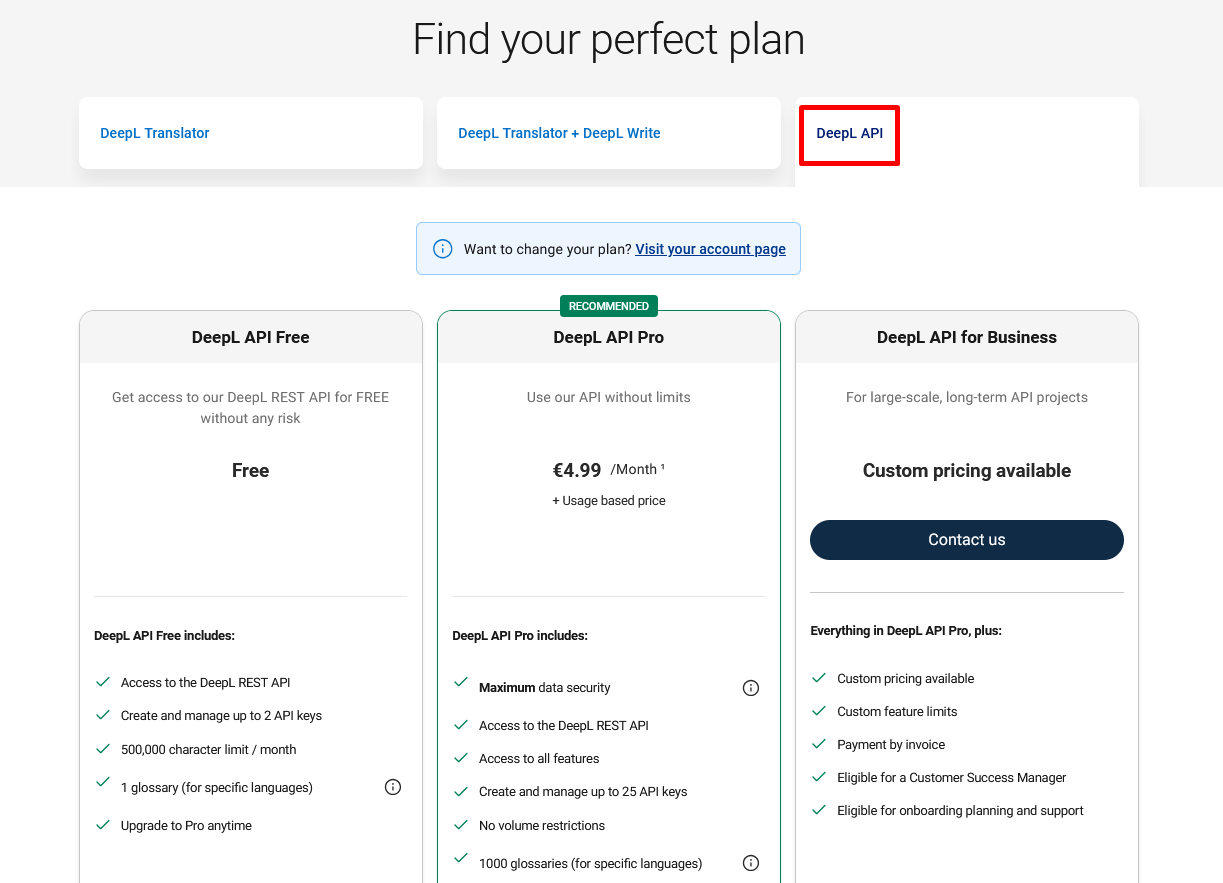
3. Select DeepL API, then choose one of the two plans: DeepL API Free (free) or DeepL API Pro (€4.99).
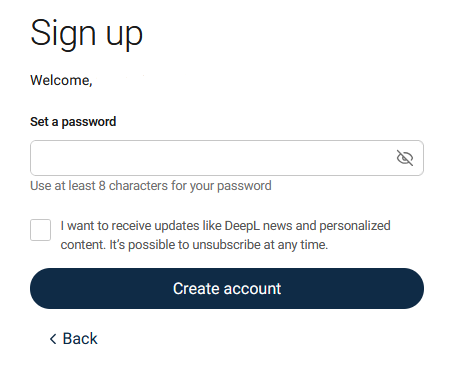
4. Now enter your email and create a password.
5. Next, fill in your personal details (country, address, first name, and last name).
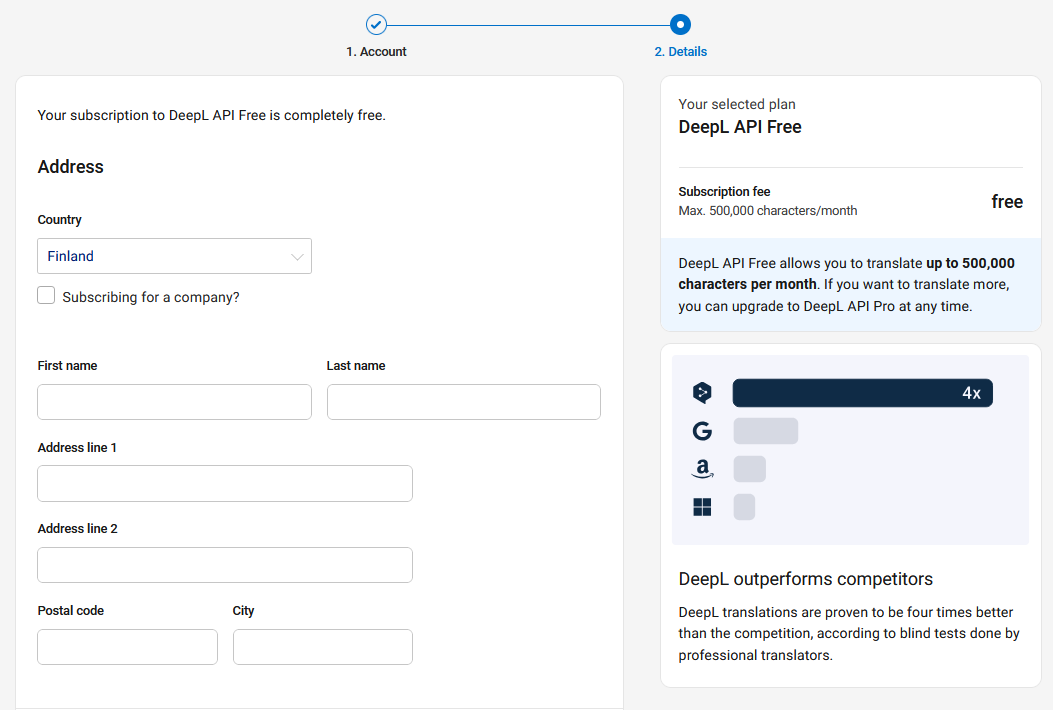
6. Then enter your card details.
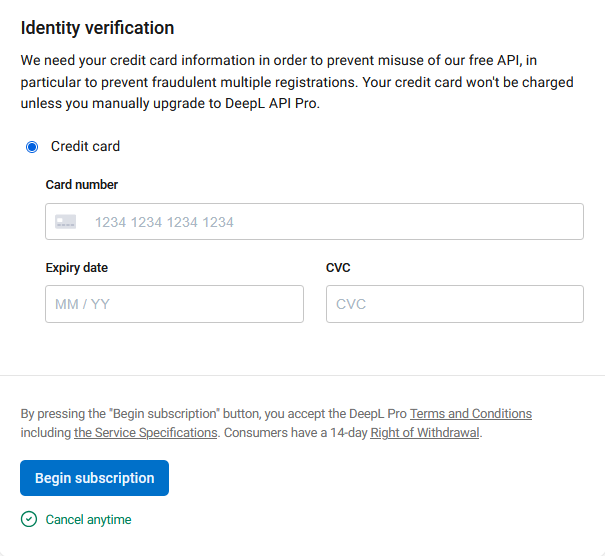
Even if you choose the free plan, your card must still be valid for registration to succeed.
7. After completing the signup process, go to Account → API Keys.
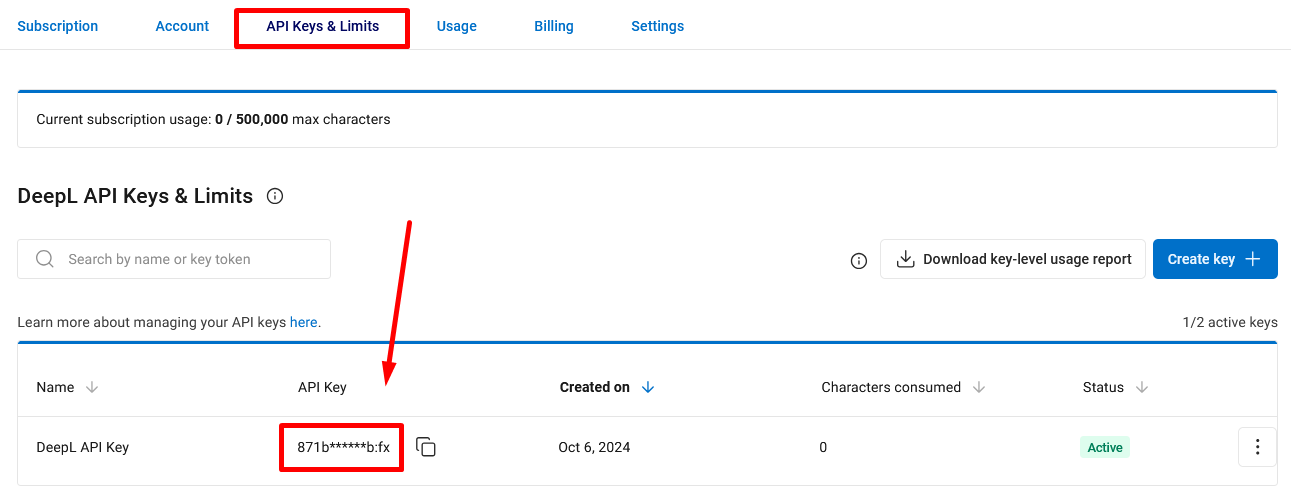
Paste the API key you received into the ZennoPoster settings
Google Translate via API

Getting a secret key.
1. First, sign in to your Google account.
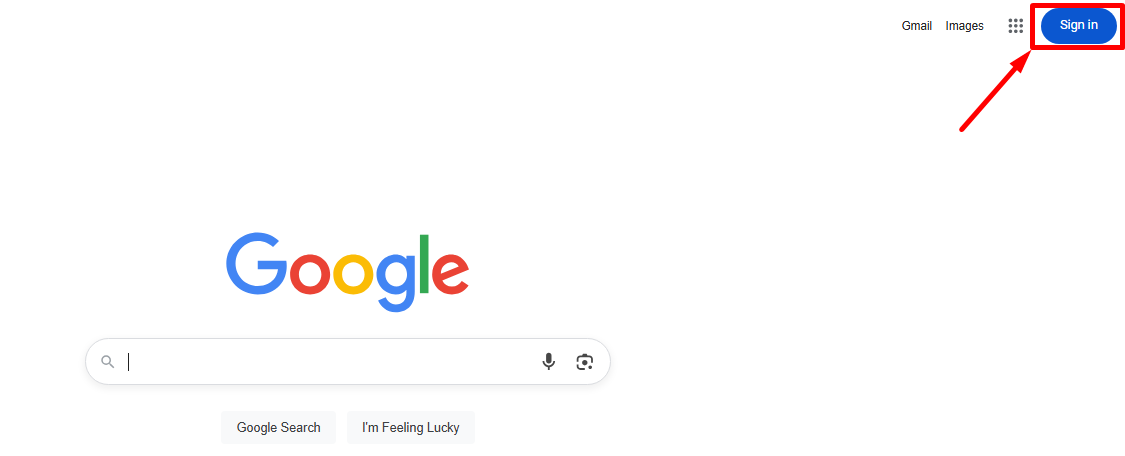
2. Then create your first project on the Google Cloud platform.
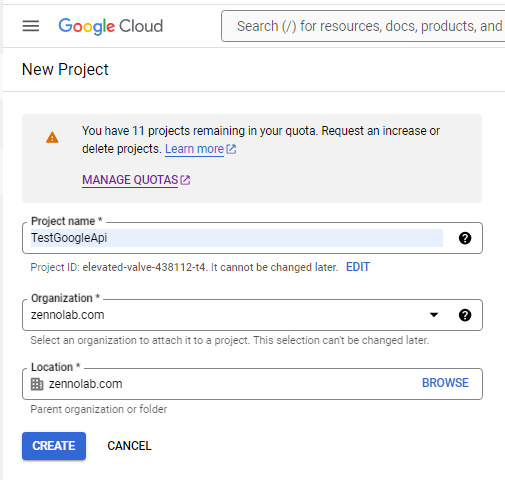
3. Now select your project and add the Cloud Translation API.
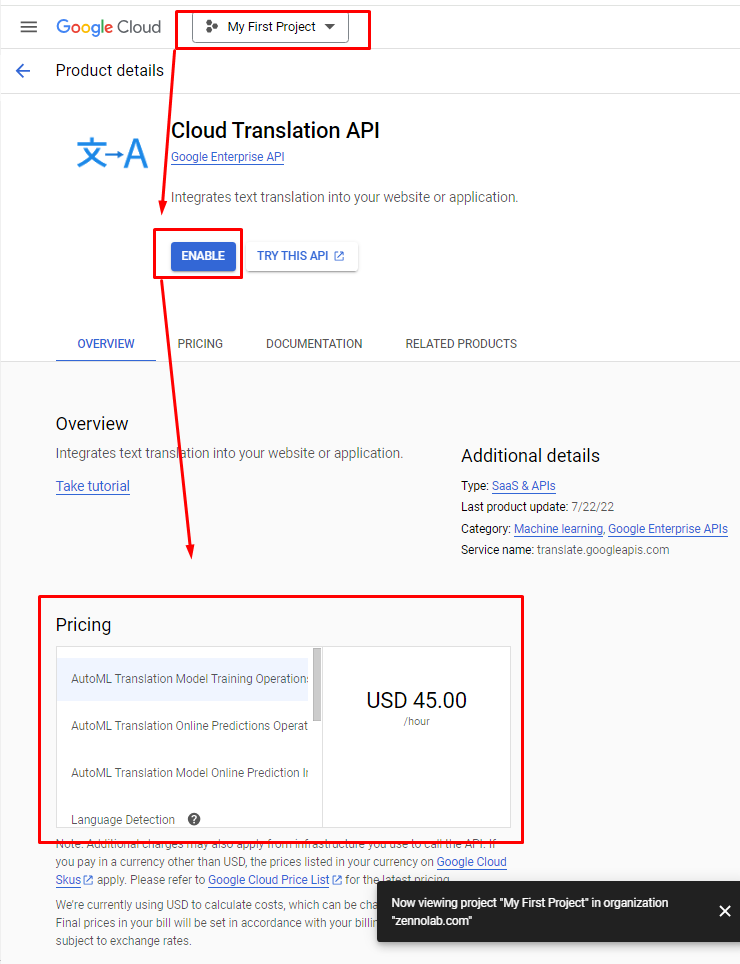
4. Get an API key and paste it into the ZennoPoster settings.
Google Translate in the Web Interface.
No setup is required for this method; just use the online translator in your browser.
Microsoft Translation.
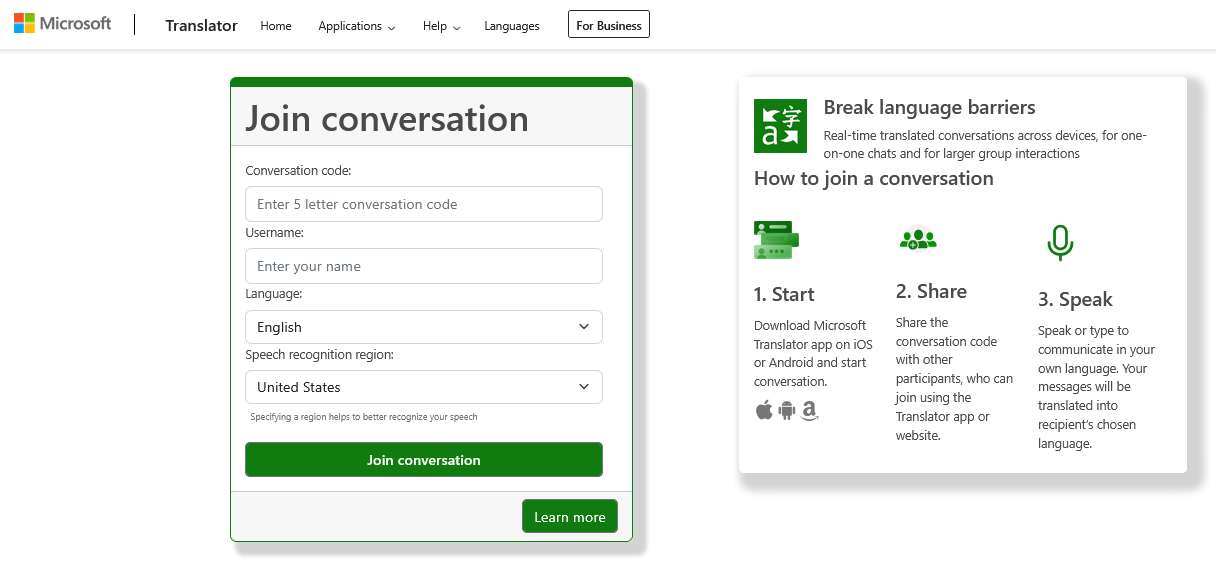
Getting an API key.
1. Go to the Microsoft Azure website and sign in, or create a new account.
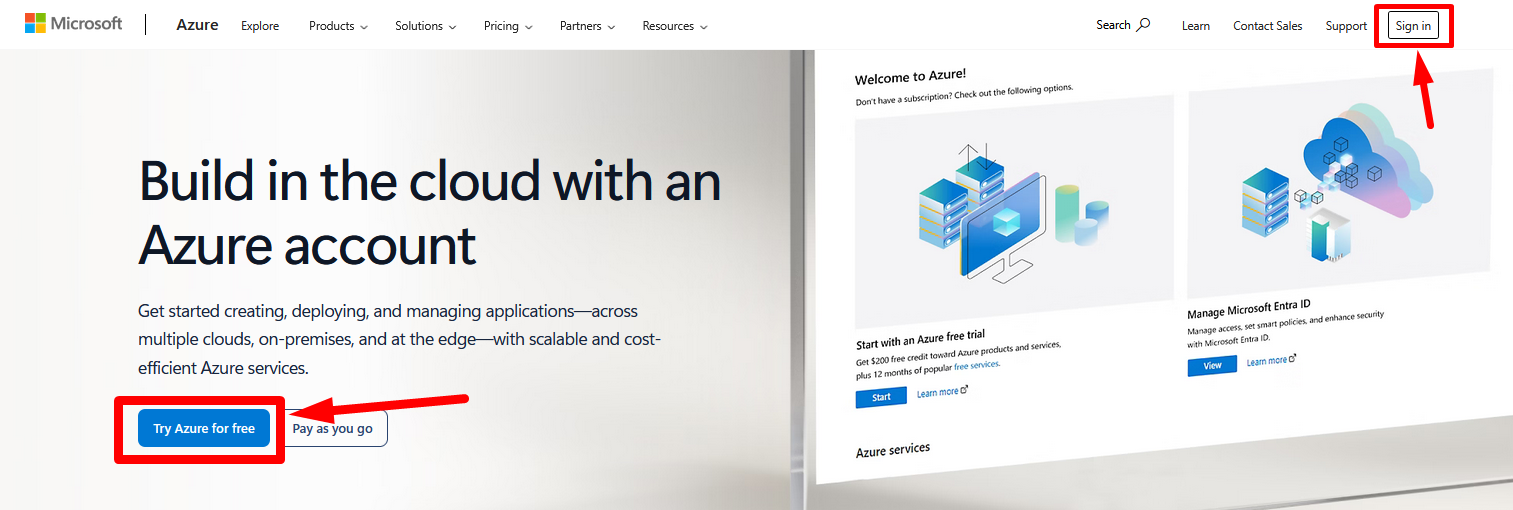
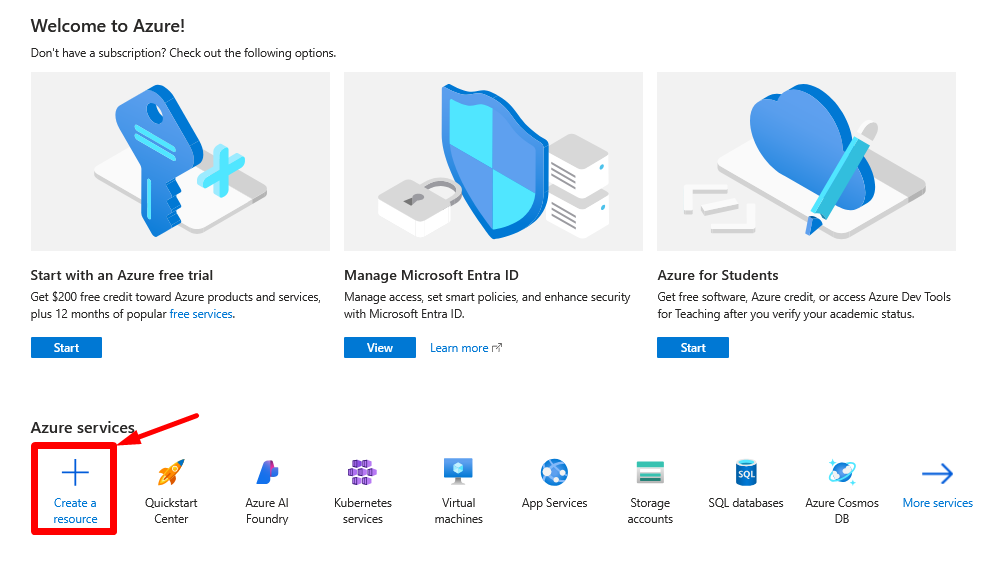
2. After starting your trial, go to the Azure services page and create your resource.
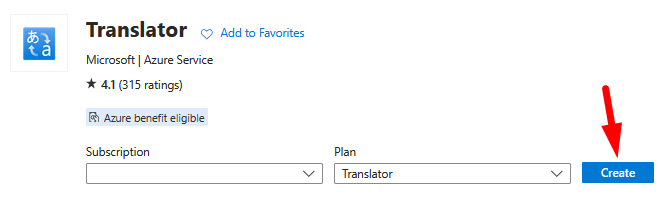
3. Use the search bar to find Translator, open it, and click Create.
4. Get an API key and paste it into ZennoPoster.
Yandex Translate.
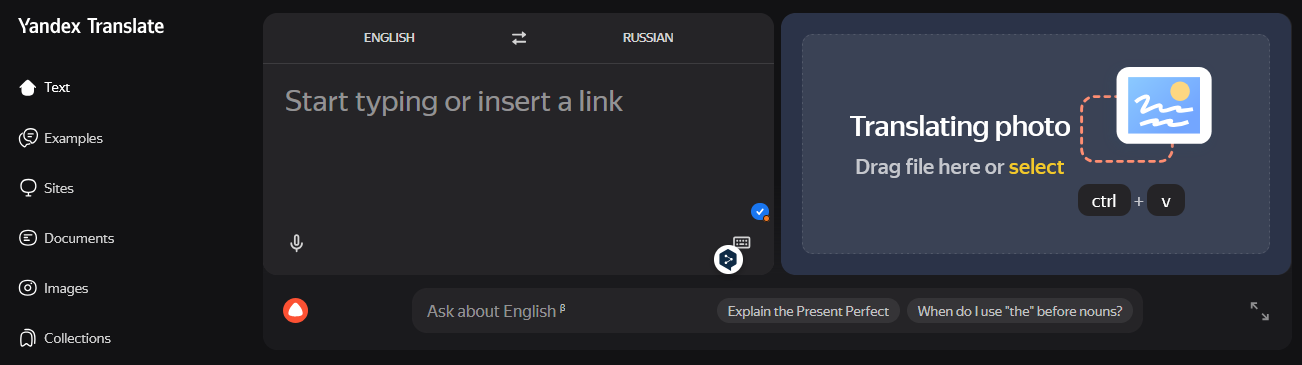
Getting a secret key.
1. Sign up on the Yandex Cloud platform.
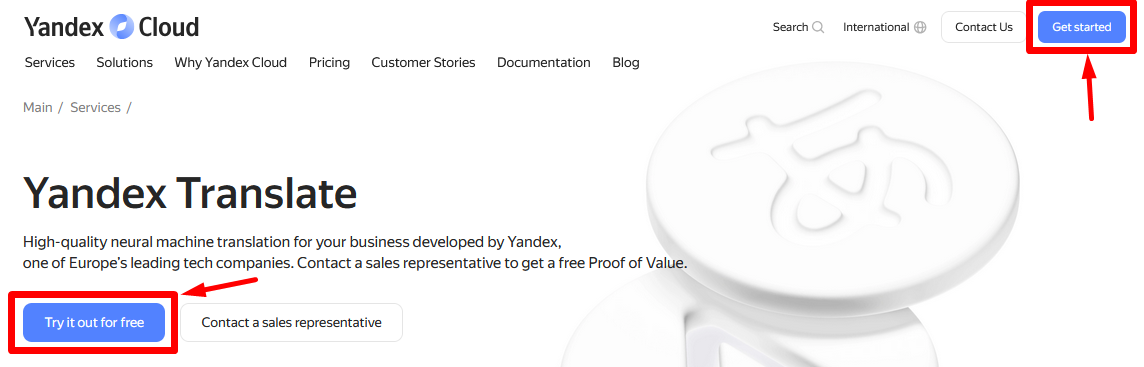
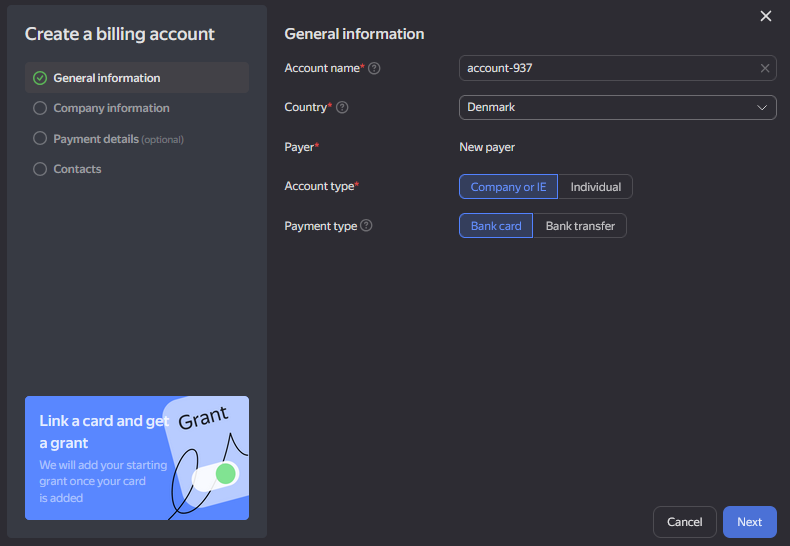
2. After signing in, go to your personal dashboard and create a billing account.
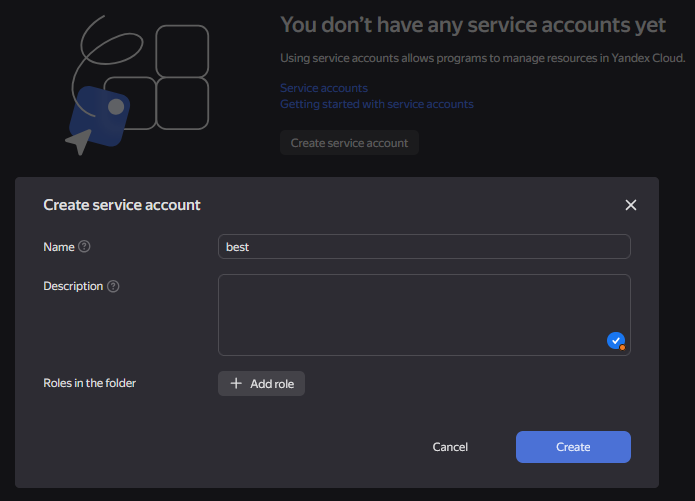
3. Now create a service account.
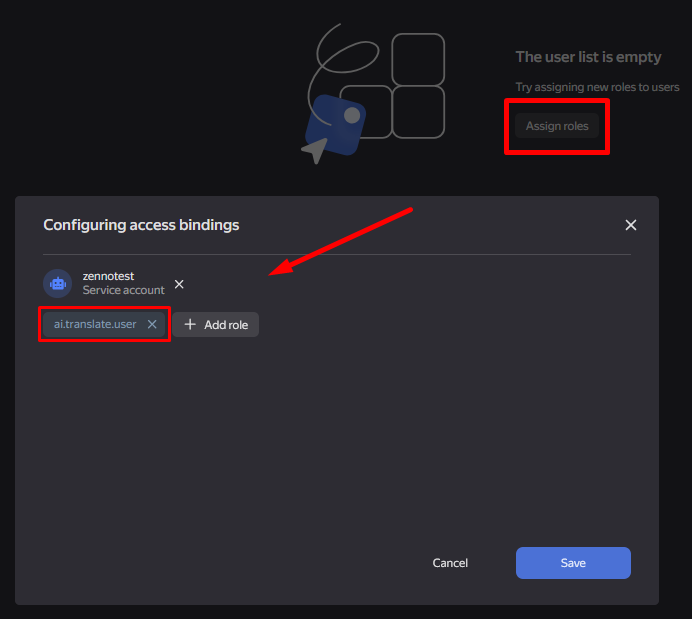
4. Next, go to the Access Permissions section on your personal dashboard.
Next to the required account, click the three-dot icon → Edit roles → Add role → ai.translate.user.
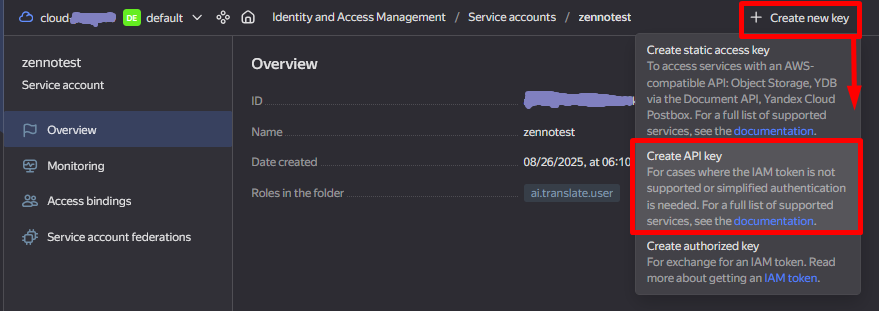
5. Go to the Service Account page and create an API key.
Usage example.
While your project is running, you can translate various types of content. For example, translate a phrase from Russian into English to send it in a message.
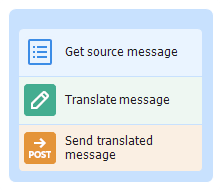
- Get a text string from a List.
- Add the Text Processing action.
- Configure the translation function by selecting the service and parameters you want.
- Send the translated message to the recipient.